Installation Procedure
Start with a clean slate: compress and archive any existing data from the current USB volume on some other media, unless you're prepared to kiss it goodbye forever - the contents of the flash drive will be irrevocably destroyed during the formatting process. Using Windows or Linux to create an initial image is purely a matter of personal preference; once Knoppix is situated properly on the flash drive, it makes little difference which operating system (and to an extent, the underlying hardware) its host computer uses.
1. Partition The USB Flash Drive
Using native Linux disk partitioning utility fdisk, discover the appropriate USB drive entry as depicted in the screenshot below.

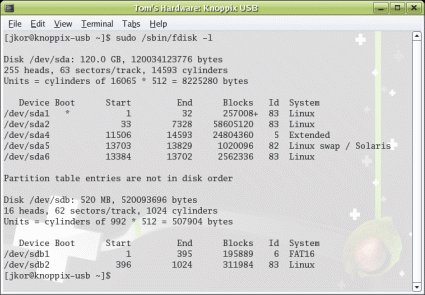
Invoke fdisk to identify drive entries.
For our purposes, an initial 64 MB partition would suffice to store either of these 50 MB images (DSL or Feather), but for simplicity's sake, the entire volume was used.
2. Format The USB Flash Drive
FAT16 is our format of choice because it works well for bootable USB images. Other formats may or may not work, in our experience. If necessary, you can create a separate partition to store additional binaries or data using an entirely different file system format. This is demonstrated in the following image, which describes how to format an additional EXT3 file system, and turn off boot-time checks during the drive mounting process (using tune2fs).
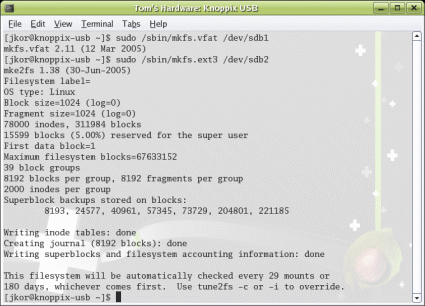
A single partition for Linux, with another for additional storage.
3. Mount The USB Flash Drive
Mounting the USB flash drive makes it available as a storage device to the rest of the system. With a simple invocation of the mount utility (depicted below) the USB drive is ready to receive files. (Do this only if your desktop hasn't already mounted the volume for you.)
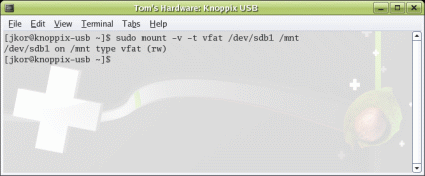
Invoke mount to make the drive available.
