Recovery
All three backup products provide a way to boot up a repaired computer from a CD. Once the computer is booted you can use the CD to restore the system disk. You can also restore to a new system disk temporarily mounted in any computer with any of the three products. Finally, all three products let you restore a non-system disk to any non-system disk in your computer or any other computer.
The CD you use to install LiveState Recovery is also your boot CD. It includes a large number of drivers for hard disk and CD drives and network adapters. You run a program that checks to see if there are any drivers on the computer to be backed up that are not on the CD. If specific drivers are not available, the program provides instructions for assuring you have the required drivers on hand when doing a recovery.
RetroSpect creates a bootable .iso CD image file on the hard disk after your first backup. The image contains all of the drivers needed for hard disks, CD drives and network adapters in your computer. It also includes all files required to do a basic reinstallation of Windows. These files are copied from your Windows installation CD; you must enter the Windows installation Product key before RetroSpect will make the CD. After the .iso image is created you burn it to a CD - this takes some time, but makes recovery pretty simple. The actual contents of your disk are recovered from the hard disk or tape they were written to.
Drive Backup comes with a bootable .iso CD image file that you can burn to a CD. When you boot your repaired computer from the CD you're offered several methods for recovering your drive. The easiest runs a mouse-driven text interface Linux version of Drive Backup from the boot CD. The interface works fine with Windows drives and backups created in Windows. The Linux version lets you do almost anything you can do in the Windows version. You can find and recover any drives or drive partitions you've backed up, including the system drive. You can even backup drives and partitions to any available disk drive in the computer. Networked drives are not supported for recovery or backup. However, you can restore a networked backup by running Drive Backup in Windows.
In all three products, as with backup, wizards simplify recovery where a boot CD isn't required. For example, after selecting the backup you wish to restore from, Retrospect shows you a wizard page that lets you select what you want to restore and to what point in time. See Figure 5.
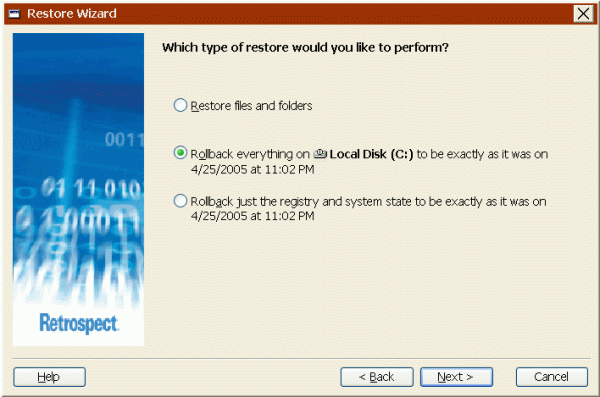
Figure 5
You can restore discrete folders and files, the entire disk drive if you're working with a full disk image, or just the registry and system state. LiveState Recovery offers recovery to any point in time for which a backup was done. See Figure 6. This capability coupled with event-driven incremental backups gives LiveState Recovery some very powerful backup/recovery options.
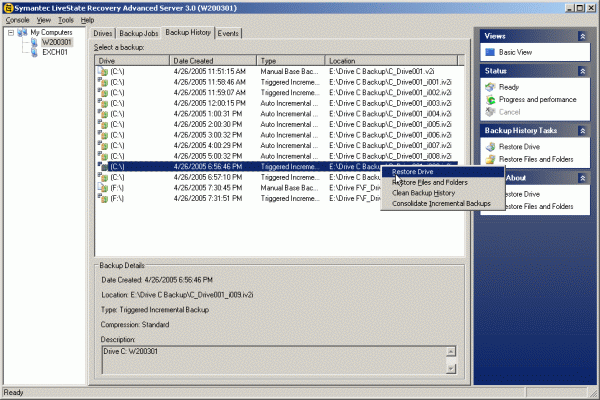
Figure 6
Drive Backup lets you restore discrete files or a full disk image from your latest backup. Interfaces are clean and simple.


