Accessing Hamachi Networked Systems
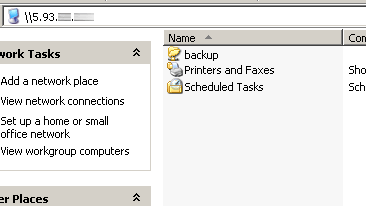
Accessing a networked PC (logged in to your Hamachi network) is as easy as if the system were sitting next to you. You merely open Windows Explorer and enter the IP address of the target computer, preceded by a double backslash. You can also access systems by right-clicking on the system IP address inside the Hamachi status window. From here, you can ping systems or "browse" them, which opens an Explorer window. We were not able to access Hamachi network computers by typing in their nicknames, though.
Remember that you have to create shared folders if you want directories on a PC accessible via network. You can map network shares as network drives (e.g. map \\192.168.1.45 to drive K:), but we only recommend to do this if you intend to keep the Hamachi network connection alive at all times - or Windows will keep reminding you that drives are no longer available.
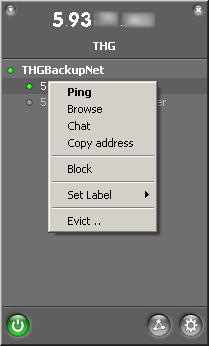
Right-clicking a Hamachi client will give you this context menu.


