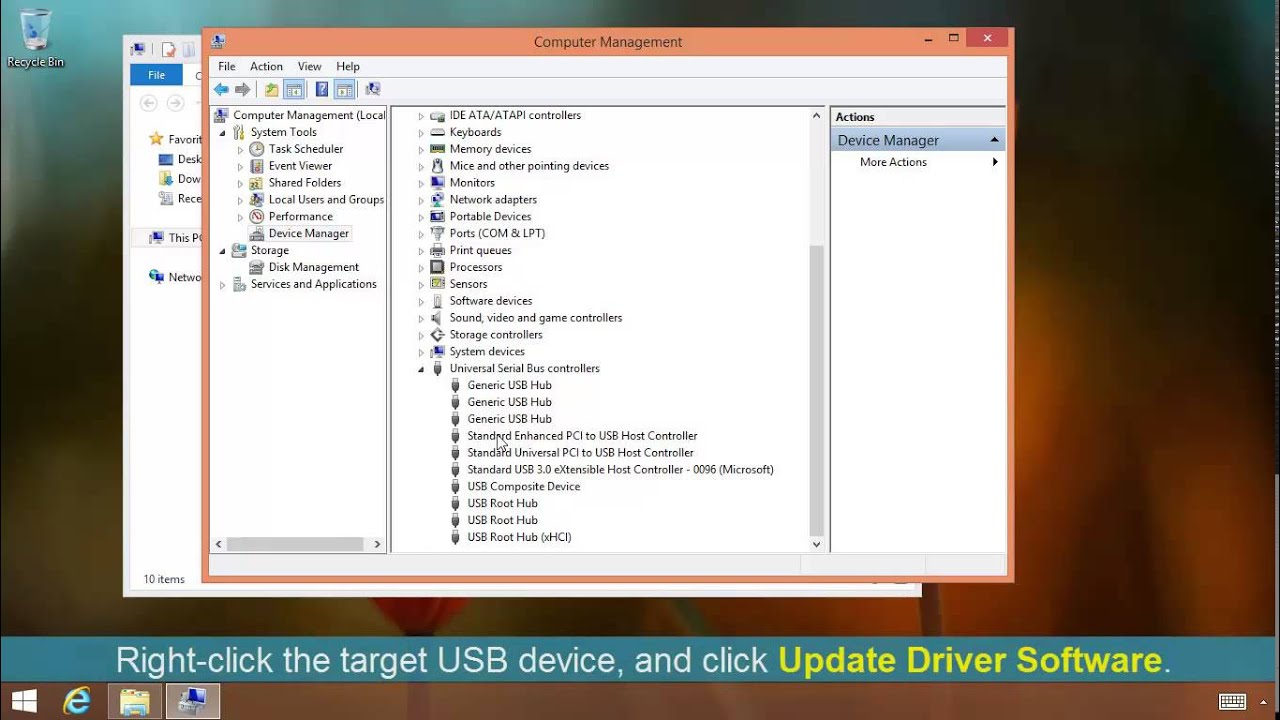
In some rare cases, Windows 8 can fail to detect certain USB devices when connected. The most possible reason for this issue can be conflicts between other USB devices that users might have connected to the computer. In order to resolve this issue, users should try removing other connected USB devices, restarting the computer, and then reconnecting only the target USB device to the computer, without connecting the other devices at all.
If the above method doesn't resolve the problem, the issue might be old or incorrect USB drivers. Although drivers for almost all types of USB ports are present in Windows 8 driver database, there might still be some ports that the operating system fails to detect. When this is the case, administrators are recommended to update old driver with the latest version of USB driver to resolve the issue.
In order to make things easier for the administrators, Windows 8 automatically searches for and downloads the latest USB drivers from the Internet. However the process of driver search and download must be initiated by the administrator manually.

Like other driver and software update processes, the update process of USB drive also requires elevated privileges. This means that in order to update the USB driver, administrator account must be used to log on to Windows 8 computer.
How to Update USB Drivers
In order to update USB drivers in Windows 8, simply follow the below steps:
- Log on to Windows 8 computer with the administrator account.
- Make sure that the computer is connected with an active Internet connection.
- Click Desktop tile from the Start screen to go to the desktop window.
- Once on the desktop screen, hover mouse to the bottom right corner of the window.
- From the displayed options, click Settings.
- On the Settings pane, click Control Panel.
- On the opened Control Panel window, click Hardware and Sound.
- On Hardware and Sound window, click Device Manager under Devices and Printers category from the right pane.
- On Device Manager window, expand the Universal Serial Bus controllers category.
- Once expanded, right-click the USB controller that is to be updated.
- From the context menu that appears, click Update Driver Software to update the driver of the selected USB controller.
- On the displayed box, click Search automatically for updated driver software to make the Windows to search for the updated driver from the Internet.
- Wait till the selected driver gets updated from the Internet and on the next page, click Close.
- Close Device Manager window, when done.
For a detailed video walkthrough, check out the Tom's Hardware Tutorial Video above.
The above content was adapted from our Tom's Hardware Tutorials Forum.
Follow Marcus Yam @MarcusYam. Follow us @tomshardware, on Facebook and on Google+.
