An Easier Way: THG Task Assignment Manager
Recurrent tasks are a real hassle to deal with in the Windows Task Manager. Since Windows doesn't remember your last settings, you have to reinvent the wheel every single time. And then there's the fact that some applications that launch in full-screen mode cannot be fully configured. Many of these programs will crash if you try to switch from full screen to the Windows shell.
Enter our THG Task Assignment Manager. We programmed it specifically for these special scenarios. It enables you to define profiles so that your favorite applications will always have the same CPU assignments every time they run. The upshot of this is that applications that block access to the Windows shell can still be assigned to a CPU.
The utility is easy to use. After launching it, you can modify the processor assignments under the "Select Application and Assign" tab for active applications. All it takes is a double-click.

For a permanent assignment, you will have to access the "Application Profiles" tab. Here, you can specify which applications should always have the same assignment when launched. You first have to enter the program in the list. To do so, either type the file name in the appropriate field, or select the file using the "Browse" button. If you click "Add", you will be asked to assign a processor before the program is added to the list.
As long as the THG Task Assignment Utility is running, the processes will be assigned automatically.
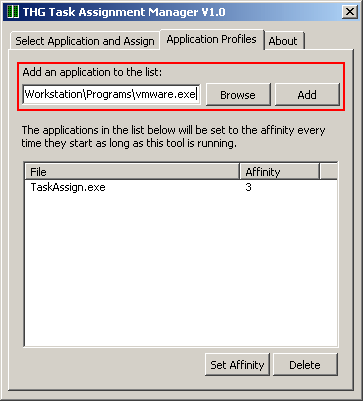
Add a program to the list
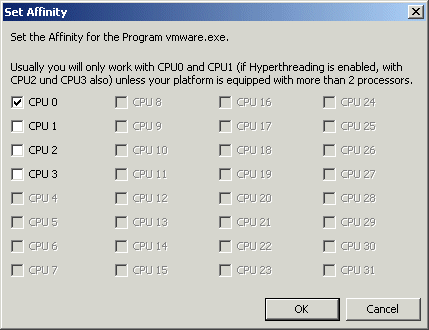
Defining the CPUs
Our benchmarks show how our utility has an effect on speed. We ran the benchmarks with automatic Windows management enabled, with HyperThreading disabled, and with the THG Task Assignment Manager. When running the benchmarks with the THG utility, we used the standard settings for all other processes and assigned the benchmark application to the physical CPUs (CPU0 and CPU1) only.