Expanding The Role Of USB Flash Drives
Flash drives aren't always recognized during the PC boot process. The USB flash drive controller and the PC's BIOS must be properly introduced to one another. That said, nearly all flash drives and PC can be configured so that the PC can boot from the flash drive.
You Need This: XP On The USB Pen Drive
In most cases, any compatible USB flash drive makes a suitable target for Windows XP installation. But the following system requirements must also be met:

- A USB flash drive with at least 256 MB of storage is enough for the uses described in this article. Additional system tools or applications require more space. The upper bound limits for storage in this case is 2 GB - a byproduct of the tool's use of FAT16 for the local file system.
- Most new motherboards recognize USB flash drives as valid boot media. But conventional motherboards that are more than two years old aren't likely to boot from a USB flash drive. But in many cases, this omission can be remedied through a BIOS update for that board.
- 1.5 GB of unused disk space is the maximum needed for the tool to do its job, particularly if you want to pre-install Service Pack 2 and RAM disk capabilities. 190 MB of unused space is all that's needed to use PE Builder and the applications described in this article, however. Additional plug-ins will increase storage requirements, as will additional tools or software.
- 512 MB of USB flash drive storage space is needed only if boot-up works from a RAM disk. Otherwise, 256 MB is big enough.
- Access to a USB 2.0 port is not mandatory, though booting with a USB 1.1 port takes about five times longer.
- A Windows XP Setup CD works fine as a foundation for PE Builder to generate the USB flash drive's contents.
Formatting The USB Flash Drive
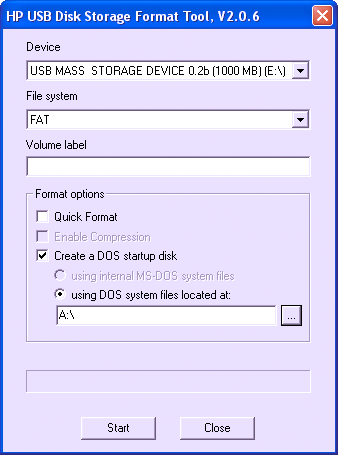
Disk Storage Format Tool: This program from HP can format any USB flash drive
Most BIOS versions accept a USB flash drive as a boot disk only if it uses the FAT (File Allocation Table) file system. Before you can install Windows on the USB flash drive, it must first be formatted.
Warning! Windows XP also provides a tool to format USB flash drives, but the results of that process are error-prone. In a worst case situation, it can even destroy the flash RAM in a USB flash drive.
Installation requires the use of HP's freeware tool HP USB Disk Storage Format Tool instead. Once installed, you can run the program through this sequence of menu choices: Start, All Programs, HP Company. Select the USB flash drive you wish to format from the Device entry, then select FAT as the target file system for that device. Click Start to launch this process. Once complete, you must then copied the Windows XP boot files to the USB flash drive - namely,
%systemdrive%\boot.ini, %systemdrive%\ntldr, and %systemdrive%:\ntdetect (if you know the drive ID where these files live, use that instead - it's normally C). To make Windows Explorer display these files (they're ordinarily hidden), choose Folder Options... from the Tools menu, then click the View tab in the Folder Options window. Finally, in the Advanced Setting pick list, click the radio button underneath Hidden Files and folders that reads "Show hidden files and folders." Finally uncheck the box next to "Hide protected operating systems (Recommended)," so you can select and copy these all-important Windows XP files to the flash drive. The USB flash drive is now ready to boot your system. Next, you learn how to instruct your PC to boot from a USB flash drive.