








Here are the top ten PowerShell commands in Windows that will get you started
Learn the basics and improve your PowerShell skills

In this guide we will take a look at some simple command prompt commands and then delve into PowerShell and learn how it handles the same tasks, providing you a guide to the top ten powershell commands you need to know to get started.
In the 1990s I had a 486 PC with just enough RAM to run Star Wars X-Wing or Windows 3.1. I learnt the MS-DOS prompt and I was soon navigating the filesystem and tweaking config files like a sys admin with a deadline. These days I spend more time in the Linux terminal than Windows Command Prompt, but it did have me wondering how the command prompt and its “successor” PowerShell behaved in 2025. And so, here we are!
Microsoft’s PowerShell is a command line shell and scripting language that is more powerful than the command prompt, and offers automation and system administration tools for the Windows sys admin who wants to automate parts of their role. The scripting side of things has advanced logic such as loops, variables, functions etc and that makes it ideal for boring jobs like user creation, system configuration and software deployment.
PowerShell uses cmdlets (command-lets) that are small, single-function commands and has a get and set syntax to get the information that we need, and then we can set the configuration to how we want things to work.
- PowerShell is a scripting tool commonly used to automate tasks.
- You can use PowerShell to administrate a Windows PC, or other PCs over a network.
- Scripts are written using standard programming logic, making PowerShell easy to learn and use.
The basic commands that we should all know
Those of us with a little grey in our hair will probably be familiar with MSDOS commands, and most of these commands still work with PowerShell. Let's take a quick look at a few of the old commands.
Command |
Description |
Example |
|---|---|---|
dir |
Lists the contents of a directory, this can be the current working directory, or another location passed as an argument. |
dir Another location dir C:\Users\ |
cd |
Changes the current directory. |
cd Music |
copy |
Copy file(s) from one location to another. |
copy truck.png c:\Users\lespo\Documents\ |
del |
Delete a file |
del truck.png |
move |
Moves a file from one location to another. |
move truck.png c:\Users\lespo\Documents\ |
mkdir |
Creates a new directory in the current working directory, or in another location if passed as an argument. |
mkdir Images Another location mkdir D:\Images |
rmdir |
Delete a directory in the current working directory, or in another location is passed as an argument. |
rmdir Images Another location rmdir D:\Images |
ipconfig |
Shows information on the currently active network connections. |
ipconfig |
ping |
Checks a network connection by “pinging” a target IP address or URL. |
ping 8.8.8.8 |
tasklist |
Lists all of the running processes by name or PID. |
tasklist |
The top ten PowerShell commands
Lets now take a look at how PowerShell does things with these ten commands.
1. Get-Help
Get Tom's Hardware's best news and in-depth reviews, straight to your inbox.

The Get-Help command is your key to unlocking the built-in help files that PowerShell has hidden away. It can display information on cmdlets and their syntax.
get-help get-processThe help files can be updated by running this command.
update-help2. Get-Command
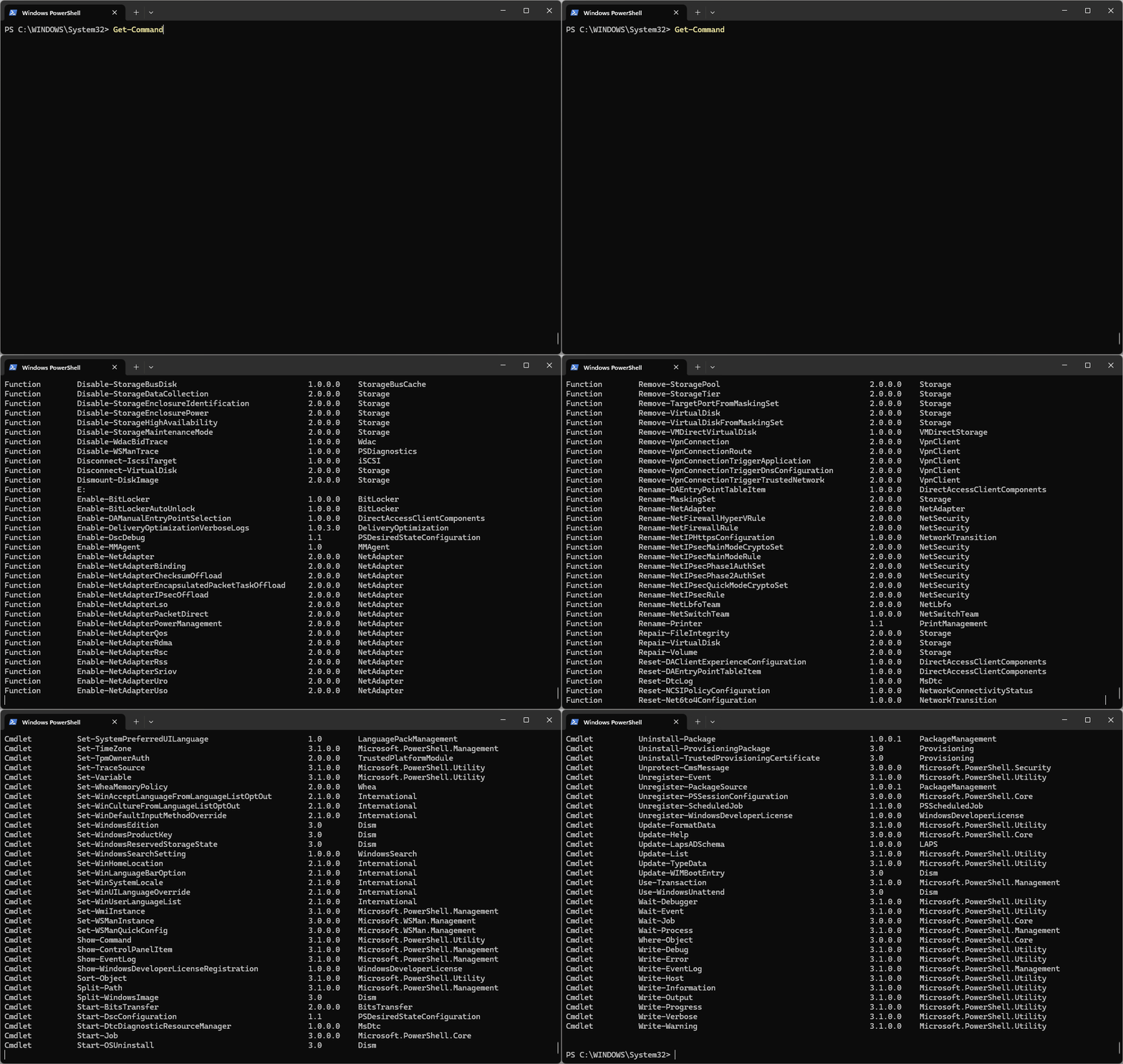
Not sure what commands you can run in PowerShell? This command lists all of the available commands and functions at your disposal.
get-command3. List and Control Services
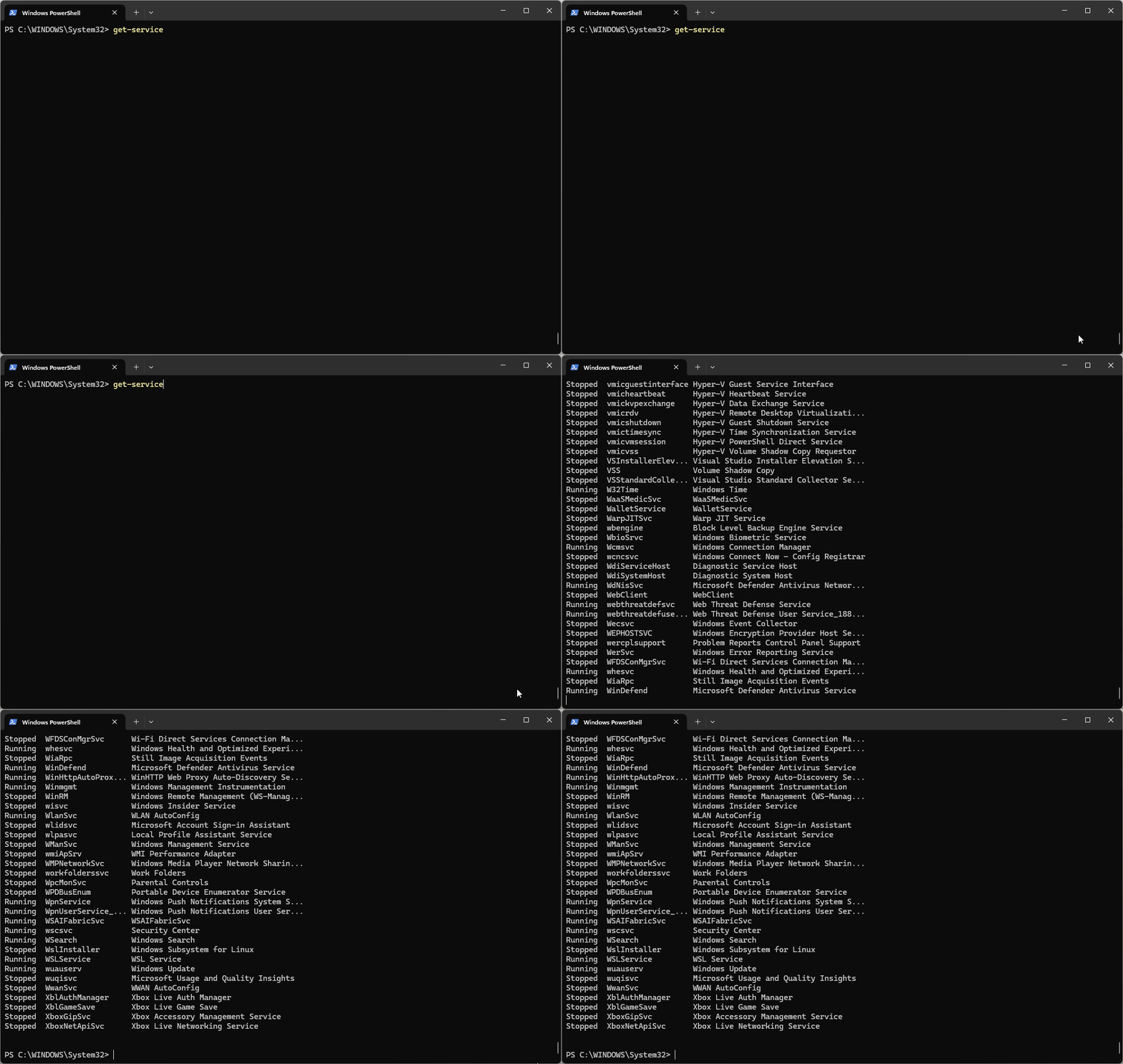
In the background on our Windows machines, services run to perform tasks and await user input. These services can range from DHCP for our network to Google Chrome updates to print services like Bonjour. We can list all running and stopped services with this command.
get-serviceWe can then stop a running service by running this command and passing the name of the service. For example, here I am stopping the Bonjour print service.
stop-service Bonjour ServiceIf I need to restart a service, I just use this command and pass the name of the service.
start-service Bonjour Service4. List all the running processes
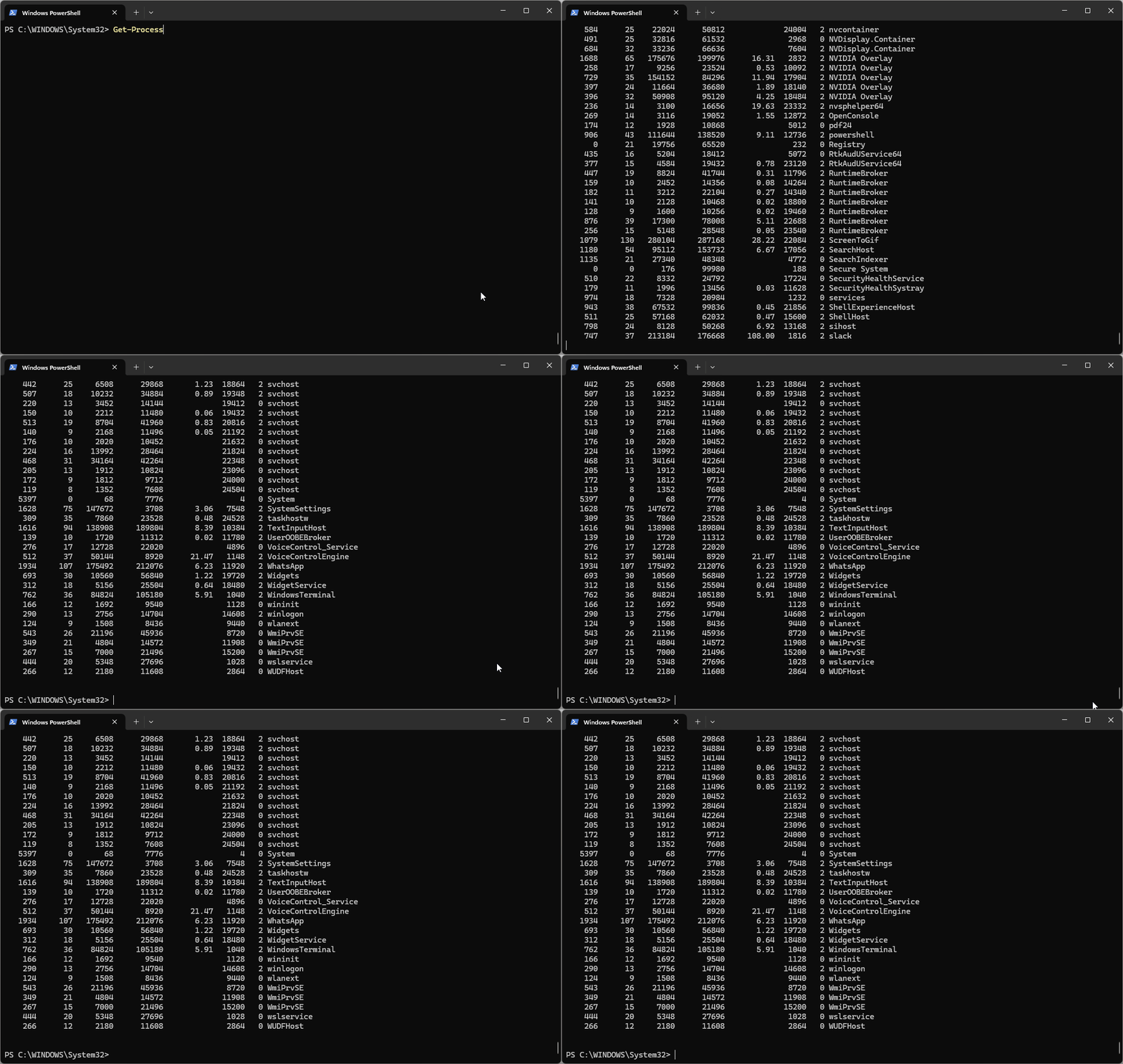
Much like services, these commands can list the running processes on your PC. They could be the multiple Chrome processes that prevent all of your windows and tabs from disappearing when a crash occurs. Once we know which processes are running, we can stop a process that is consuming too much of our resources.
To list the processes.
get-processTo stop a process.
stop-process5. List files and directories

There are a few ways to list the contents of a directory. We can use dir or ls to list the contents of the current directory, or another location by passing the location as an argument. We can also use get-childitem to perform the same task.
dir
<<or>>
ls
<<or>>
get-childitem
6. Copy-Item

Essentially, this is the same command as copy but in PowerShell. Of course, you can still use copy in PowerShell, it acts like an alias for this command. Here I am copying a file IMG_20251105_111626.jpg into the same directory, but I am changing the destination files name to testpic.jpg.
Copy-Item .\IMG_20251105_111626.jpg testpic.jpg7. Move-Item

The move-item command works just like move, changing a file’s location to a new directory. Here I am moving the testpic.jpg to a new directory inside the current working directory. I use dir, passing the directory as an argument.
Move-Item .\testpic.jpg .\extras\8. Remove-Item
This is basically the same as using the del command to delete a file. Here I change directory to extras, and then I use Get-ChildItem to list the contents of the directory. Then I use Remove-Item to delete testpic.jpg before I then list the contents of the extras directory to show that the deletion has occurred.
Remove-Item .\testpic.jpg9. Get, set and append content

Have you ever needed to take a peek inside a text file, but don’t need to open a text editor? I’ve done this many times on Linux (less / more / cat) and there came a time where I needed to in Windows PowerShell, so I used this. Here I am reading the contents of textfile.txt which I created in Notepad++. The output of the file is dumped to the PowerShell terminal, just like Linux would send output to the terminal.
Get-Content textfile.txt 
If you need or want to create a file in PowerShell, you can use this command to create a new file. Note that the command will interactively ask for input [value0[, [value1] etc. When you have entered all your text, press Enter on a blank line to signal to the command that you are done. This command will overwrite the contents of the file, so only use it on new files or if you are really sure.
Set-Content textfile.txt
If you want to append to a file, you’ll need to use this command. It has the same [value0], [value1] workflow as Set-Content.
Add-Content .\textfile.txt10. Test-Connection

This is effectively the same command as ping. It contacts a remote host and checks that your machine, and the remote machine can communicate with each other. This is often used to check that your PC can get online, especially when trying to determine network connectivity issues. The command takes an IP address or URL as an argument, here I am using the IP address for Google’s main DNS server.
Test-Connection 8.8.8.8
Here is the same command, using google.com as the target.
Test-Connection google.comFinal Thoughts
So there we go, we’ve taken our first steps into PowerShell commands, comparing them to command prompt commands and explaining how to use them. Some are useful, others are quirky, and their “DOS” aliases make much more sense for daily use, but there will come a time when we need to know these commands, say for a script or configuration file, so keep them in mind.

Les Pounder is an associate editor at Tom's Hardware. He is a creative technologist and for seven years has created projects to educate and inspire minds both young and old. He has worked with the Raspberry Pi Foundation to write and deliver their teacher training program "Picademy".