Laptops are convenient. You don't have to build them – unless you want to. They can travel with you everywhere, you turn them on, and they generally just work. Most people use them until the day they die and throw them away or recycle them. But just like complex PC builds, laptops can still benefit from a bit of maintenance and cleaning, to help keep them running at their best for as long as possible. While you can't typically replace the CPU or GPU to make a laptop run like new again, there's plenty of cleaning and upgrading you can do that will make your laptop feel like a better machine. One of those things you should consider is just spending some time uninstalling software that you no longer regularly use. Freeing up space and having fewer apps load at launch can go a long way toward making a sluggish laptop feel fresh again. But we’re going to primarily focus on the hardware here.
Whether you're simply cleaning the machine to get rid of dust and grime or considering making component upgrades, here are the tools you need to take the best care of your laptop. And thankfully, outside of components, most of them are relatively inexpensive.
Microfiber cloths

Lots of laptops get covered in fingerprints. Aluminum or plastic chassis, while typically durable, tend to attract oils and just look gross after a while. And even if you don't have a touchscreen, displays have a way of collecting fingerprints or other grime from being carried around.

Don't go using a damp paper towel on your laptop. Your best friend here is a microfiber cloth. These aren't abrasive, so you won't scratch your screen or your shiny system. But you’ll typically want to use a new one or one that’s been thoroughly cleaned, to avoid bits stuck in your cloth from damaging surfaces or leaving debris on your device after a wipe down.
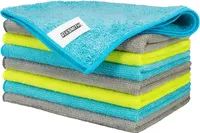
For basic smudges, the cloth alone might do the trick. But for harder-to-remove oils and fingerprints, a dab of isopropyl alcohol on the cloth may help, while evaporating quickly so you don’t have to worry about it seeping below the surface.
You can get a bunch of microfiber towels in a pack for cheap, so you can have a few extra for your TV, monitor, phone, as well as your laptop.
Snag a screwdriver kit with lots of bits
If you want to get into your system, you're going to need some tools. Most laptops can be opened by removing screws on the bottom and then prying it open.
Many laptops use Torx screws, though some still use traditional Phillips heads, so you'll want a mix. (Inside, your laptop might have both!)
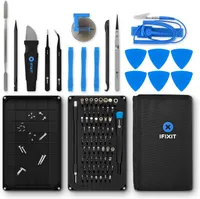
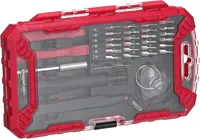
I'm a big fan of iFixit's Pro Tech Toolkit, which has a nice mix of screwdriver bits, along with tools to help you pry your system open. That being said, a bunch of cheaper options have popped up in the wake of its popularity.
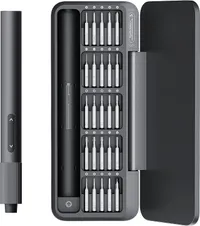
If you're opening your system a lot, you might want to consider an electric screwdriver designed for electronics. I got this one as a gift and use it often for our reviews:
Compressed air or electric air duster

Once you're inside your laptop, you might be surprised to see just how gross things can get in such a tight space. After a few years, dust can get into the system. Many gaming laptops occasionally run the fans backwards to eject dust, but that rarely gets rid of all of it.
You also might notice how many crumbs and other gunk have accumulated between the keys on your keyboard, and wish there was a simple and easy way to get that out – hey, I'm not judging!
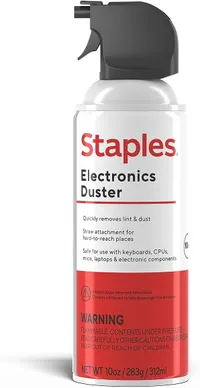
The classic way to do this kind of cleaning is with compressed air in a can, with a straw to aim it precisely. That's still well-loved for a reason, and it's not hard to pick up a can at a local office supply or electronics store. Just remember to spray it in short bursts, or the can will get very cold.
If you prefer a one-time purchase, electric dusters have been getting more popular. These are battery-powered cleaners with small, high-powered fans, and sometimes include built-in flashlights to see into PC cases or other hard-to-reach spots. Some also come with various attachments and small brushes for more exacting cleaning.
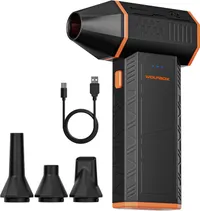
If you are using either canned air or an electronic duster to clean your laptop fans, be sure to hold them down so they don't spin too fast while you get rid of those dust bunnies.
Thermal pads
If you've had your laptop for a few years, it might be time to consider replacing the thermal pad on your laptop's SSD. (Alternatively, if your laptop's SSD doesn't have a thermal pad, you might want to consider adding one.)
This is especially the case if you're putting a new drive into your system (see below) or if your SSD is either slow or overheating. Just be sure the back of the pad also touches the metal bottom of the laptop, so the built-up heat has somewhere to dissipate.
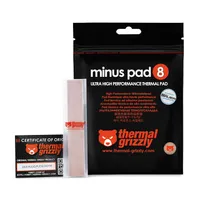
In some gaming laptops, you might also see thermal pads applied to VRMs, chipset heatsinks, or other components. Those should last for years, but if things are chugging, that could help cool components down.
Your other option is replacing the thermal interface material (TIM, often a thermal paste) on the CPU or GPU. If it's been a few years since you bought your laptop and performance is chugging, it's possible that the paste could have dried up. That being said, you'll have to carefully remove the fans and heatsinks to do this, so you should only consider touching those if you truly know what you're doing.
New components

Most of the components in laptops aren't meant to be replaced. RAM is more often soldered on than not these days, especially in non-gaming laptops (and, during this current RAM crisis, is extremely expensive). That leaves storage as the primary component that you can typically easily upgrade (though prices are going up there, too).
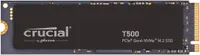
On our list of the best SSDs, we recommend the WD_Black SN7100 and the Crucial T500 for laptops. Just be sure before buying that your SSD isn’t also soldered on the board, and that there is room for the drive you are considering. Most drives you’ll find for sale are 80mm in length (2280), but some laptops only make room for shorter 30 or 42mm (2230, 2242) drives.
If your battery doesn't hold a charge the way it used to, you may be able to buy a replacement directly from the manufacturer, or from third parties on Amazon or eBay if you're willing to take that kind of risk. But check any available service manual or perhaps a YouTube teardown, because some laptop batteries are a lot easier to replace than others.