One Gigabyte Motherboard, Four Graphics Cards
Eight Displays Is A Piece Of Cake Now

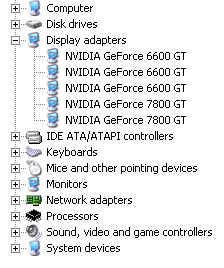
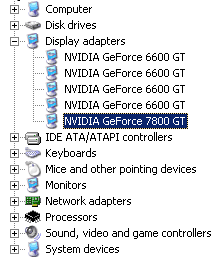
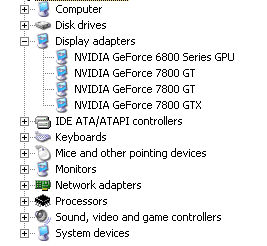
We tried several setups while testing the 8N SLI Quad Royal. What we plugged in were two Gigabyte 3D1 GeForce 6600 GT graphics cards, plus two 7800 GT models from Asus. With the SLI paddle switch card set to SLI mode, the system would recognize one of the 3D1 cards as a single GPU model only (see the first Device Manager screenshot) and would log in both 7800 GT cards normally. After setting the paddle to single mode - assigning the full 16 lanes to the card - we got a total of three 6600 GT devices (one 3D1 running in dual mode, the other in single) plus the two 7800 GTs (see second screenshot below). Of course it was possible to mix three different NVIDIA graphics cards - the system would log these in and allow the use of all display outputs simultaneously.
Get Tom's Hardware's best news and in-depth reviews, straight to your inbox.
Current page: Eight Displays Is A Piece Of Cake Now
Prev Page Display Setup Options Next Page Now That Is A Desktop
Patrick Schmid was the editor-in-chief for Tom's Hardware from 2005 to 2006. He wrote numerous articles on a wide range of hardware topics, including storage, CPUs, and system builds.
-
ShrikeC145 That looks absolutely amazing! Just wondering, what model of graphics cards are they?Reply -
jealousfraud Three ways to Setup Multiple MonitorsReply
1) You can buy a pre-manufactured multi-monitor computer. The best place to purchase a multiple monitor computer is at: Multi-Monitors.com. They carry a multi-monitor computer line called SUPER-PC that can support from 2 to 16 monitors.
Multi-Screen Computer Systems
Multiple Monitor LCD Displays
2) You can get a USB to VGA Adapter, or USB to DVI Adapter that will allow you to add an extra monitor to your computer via any USB2.0 Port. You can also add multiple extra monitors by using multiple adapters. This is a great option for viewing documents, surfing the web, using Microsoft Office and many other business tasks. This is not a good option for intense graphical situations such as HDTV, Blu-ray, Gaming and 3D / CAD Workstation applications. For those types of scenarios, it is highly recommended that you purchase a high-powered multi-monitor workstation or a Matrox Dual or Triple Head2Go.
Multi-Monitor Adapters
3) You can replace or add an extra video card to your existing computer, depending on how many monitors you wish to support. Although this sounds easy enough, this is a rather complex solution for a beginner, especially when trying to find a compatible graphics card. For this reason, I am going to write an entirely seperate post on that topic and will link to it here, very soon.
Multi-Monitor Video Cards
Once you have your multiple monitor system set up and ready to use, you will need to enable all of your monitors in your “Display Properties” Control Panel. Here is a great link to a complete and animated walkthrough of how to enable your multiple monitors in Windows.
How to Setup Multiple Monitors (Instructions)
This is what it will look like when you are done:
Multi-Monitor Video Demo 1Multi-Monitor Video Demo 2