- Migrating From Windows To Linux, Part 2: Installation
- Migrating from Windows to Linux, Part 1: Preparation
- VMware Workstation 4: More Virtual PCs, More Functionality
- On The Fly: Boot Knoppix Linux, Keep Windows Installation
- OS Comparison: On Which Operating System Do Games Run Best?
- Operating System: Microsoft's Windows Millennium
- Toaster HPC
- THGC Needs You -Team 40051
- AT&T DSL modem won't link to my Linksys router
- AMD issues dramatic price cuts for triple-core CPUs
- Fud - Nehalem Will Get 8 cores at 45nm in 2H 2009, Confirmed.
- HOWTO: Overclock C2Q (Quads) and C2D (Duals) - Guide v1.6.1
- Worst PC Build Screw Ups
- Overclocking Rumor
- What would a Bugatti over-the-top PC look like?
- C2D E4300 GA965P-DS3 v3.3 F10 temps
DHCP Server Installation, Continued
Source: Tom's Hardware US – Keywords: server, part, 2
Syndication:
DHCP Server Installation, Continued

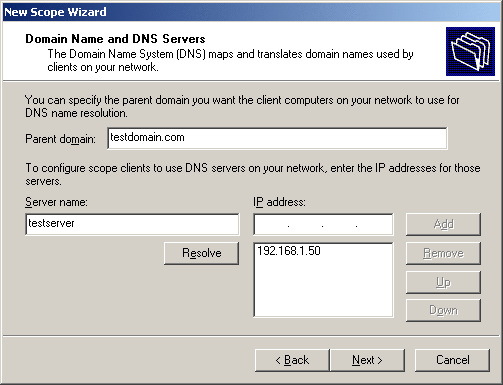
Specifying a domain name as well as the DNS server is also important. Here, many DNS servers can be specified, if they are available. For reasons of reliability, the IP address of the DSL router can be given here so that the user can still connect to the Internet if the server crashes or is restarted.

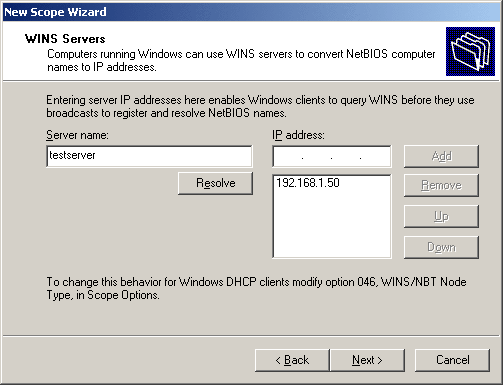
If you didn't install the WINS server, then leave the text boxes empty. Otherwise, the same thing applies as for the DNS settings.
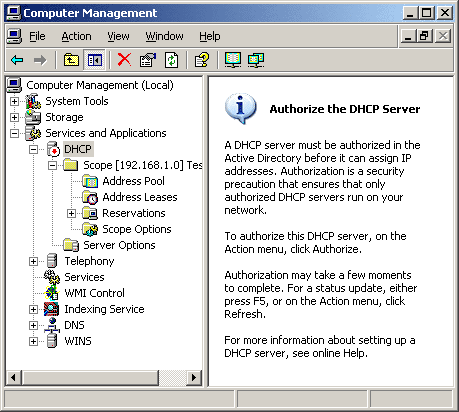
After successfully setting up an address range (scope), the DNS server still has to be authorized in order to work in the Active Directory. A right-click and the right choice of the respective item is all you need. The procedure only takes half a minute.

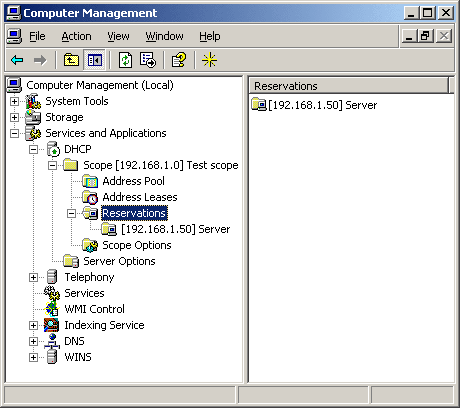
Finished - DHCP works! However, make sure that only one DHCP server is providing its services in the network. DSL routers often provide similar functions, which of course have to be deactivated.
- Previous page DHCP Server Installation
- Next page Remote Access Using Terminal Services