Earlier this year, we took a detailed look at different anti-aliasing technologies in Part 1 of this series. In Part 2, we test all of those modes in order to get an accurate picture of the performance hit we can expect when it comes to using each one.
Back in April, we took an in-depth look at anti-aliasing technologies, the image quality they impart, and the driver settings needed to enable them. Imagine our surprise when we discovered that, in many cases, forcing a particular AA mode on via the GeForce or Radeon driver panel simply does not work. In case you missed that piece, or simply need to bone up on the different anti-aliasing settings offered by AMD and Nvidia, check out Anti-Aliasing Analysis, Part 1: Settings And Surprises.
Clearly, it took us an inordinate amount of time to prepare this follow-up, and that's partially due to the fact that there was a mountain of data to amass in order to create a meaningful comparison. Any game title we wanted to use for testing had to work on cards from both prevalent vendors under specific anti-aliasing technologies. As we learned from the previous story, this severely limits the playing field. Nevertheless, we managed to gather enough information to get a solid feel for how graphics cards perform when it comes to all of the different options available.
First, What's New?

But before we dig into the data, there are a couple notable events that transpired since the publication of our Part 1 coverage.
Back in April, we gave Nvidia a hard time for using misleading naming to describe its coverage sample anti-aliasing modes. As an example, the GeForce driver’s 8xAA mode did not take eight multi-samples per pixel as its name implied, but rather four multi-samples, plus four coverage samples. As a result, 8xAA on a GeForce card was not comparable to 8xAA on a Radeon card.
We’re happy to see that the company modified its nomenclature, and coverage sample modes are now easily identified with CSAA, per the following chart:
| GeForce CSAA vs. Radeon EQAA Anti-Aliasing Levels | |||
|---|---|---|---|
| Old GeForce Driver Mode | New GeForce Driver Mode | Combined Color/Coverage Samples Plus Extra Coverage Samples | Radeon Driver Mode |
| 2x | 2x | 2+0 | 2x |
| N/A | N/A | 2+2 | 2xEQ |
| 4x | 4x | 4+0 | 4x |
| 8x | 8x CSAA | 4+4 | 4xEQ |
| 16x | 16x CSAA | 4+12 | N/A |
| 8xQ | 8x | 8+0 | 8x |
| 16xQ | 16xQ CSAA | 8+8 | 8xEQ |
| 32x | 32x CSAA | 8+24 | N/A |
| N/A | N/A | 16+0 | 16x |
Although AMD’s naming system still makes more sense (it indicates the number of multi- and coverage-samples), Nvidia’s new scheme is much better than the previous one. Despite combining both samples into a single number, the CSAA designation lets you know that the target mode represents the sum of both sample types. Now, 8x anti-aliasing always means eight multi-samples, regardless of graphics hardware, giving us all a degree of consistency we can appreciate.
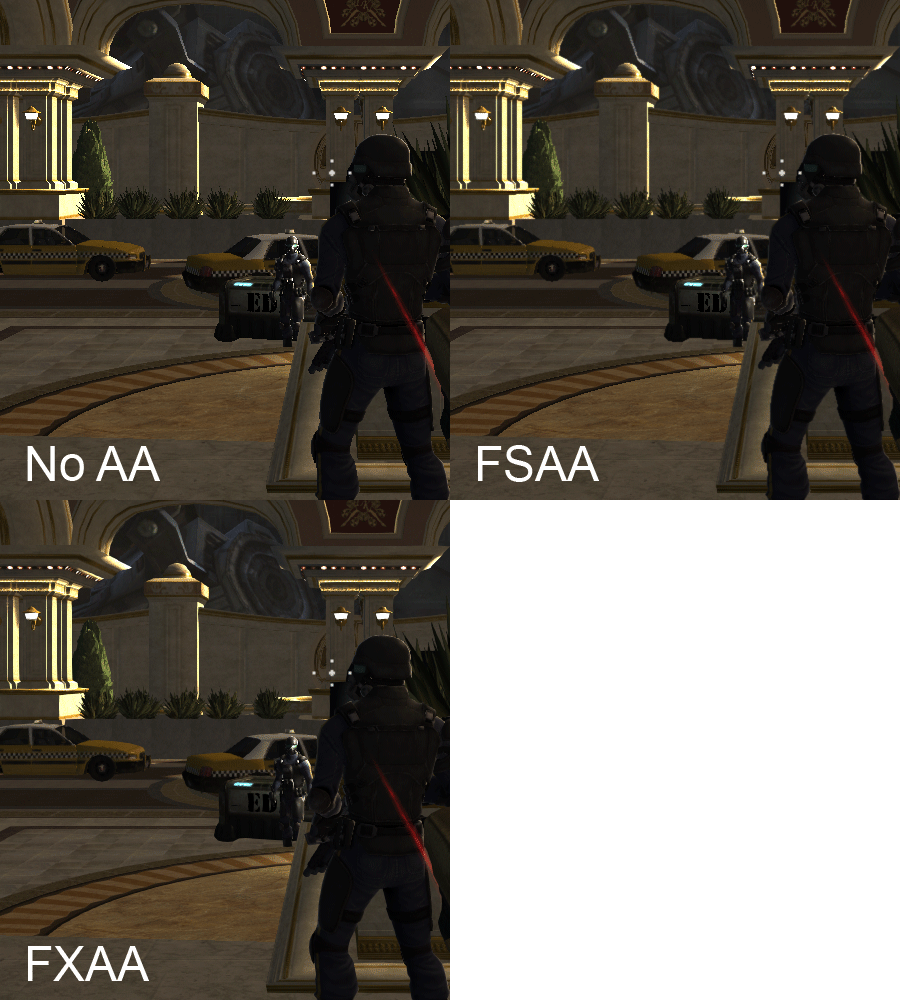
Aside from this, Nvidia now has a post-process anti-aliasing filter it calls FXAA. The technology is similar to AMD's morphological anti-aliasing, but it's implemented in-game instead of through the driver, and it works with any vendor’s graphics hardware. This new option is only included in a few games thus far (such as Duke Nukem Forever. F.3.A.R., Elder Scrolls V: Skyrim, and Battlefield 3), but the code is purportedly easy to integrate. A private programmer even released a non-commercial hack to enable FXAA in DirectX 9, 10, and 11 games. That's something you might want to hunt down on Google if you’re interested in toying with it.
- I'm Anti-Aliasing. As In, I Won't Stand For Aliasing.
- Test System And Benchmarks
- Multi-Sample Anti-Aliasing: 1280x1024
- Multi-Sample Anti-Aliasing: 1680x1050
- Multi-Sample Anti-Aliasing: 1920x1080
- Coverage Sample Anti-Aliasing: 1280x1024
- Coverage Sample Anti-Aliasing: 1680x1050
- Coverage Sample Anti-Aliasing: 1920x1080
- Edge-Detect Anti-Aliasing: 1280x1024
- Edge-Detect Anti-Aliasing: 1680x1050
- Edge-Detect Anti-Aliasing: 1920x1080
- Texture Transparency Anti-Aliasing: 1280x1024
- Texture Transparency Anti-Aliasing: 1680x1050
- Texture Transparency Anti-Aliasing: 1920x1080
- Morphological Anti-Aliasing: 1280x1024
- Morphological Anti-Aliasing: 1680x1050
- Morphological Anti-Aliasing: 1920x1080
- Supersampling Anti-Aliasing Benchmarks
- Multiple Anti-Aliasing Modes For Multiple Scenarios
I'm not a huge gamer and the games I do play mostly run awesome with my 2500K + GTX460. I decided that if it's going to be a while before the next generation of GPUs drop, I'd get another 460. So that's what I did, should be here in a few days. I was worried that even at 1920x1200 I'd have problems with AA and the lack of VRAM, but it's good to see that two 460s work pretty admirably.
As an aside, I'm totally on an efficiency kick, and I don't relish the thought of needing two cards to get decent performance, but the GTX 460 is one of the most efficient cards around well over a year after it's release.
Seriously, what is it?
Was thinking the same thing....part 1 and part 2 are contradicting each other hear...if i'm remembering part 1 correctly...
btw there's a typo at the start of page 2,
On release we tested StarCraft II because that was a game that choked with MSAA on Radeons. It turns out, that game is severely CPU limited, so it wasn't the best test subject for Morphological AA
As for #2, there's no worries as the Half Life 2 engine in Lost Coast that we used for the majority of comparison shots doesn't move the camera during idle times. We used a save game and reloaded the scene at exactly the same position, so its not an issue here.
As for your first concern, I was worried about that, too, at first. But I carefully scrutinize the uncompressed TIFF files before exporting them to GIF and in these cases there's no practical difference, it does an excellent job of demonstrating the result with different AA modes.
Also, as the first poster said, why is morphological so demanding all of a sudden? When I first tried using it, I barely saw an impact on performance and in a couple games it made everything look blurry. I just tried enabling it in Skyrim (a game that really needs better AA) and my performance plummeted - which these results confirm. What changed?
As it says in the article, EQAA is Radeon HD 6900-series exclusive. You probably don't have a 6900 card.
The answer is 5 posts above this comment.
Check our AA Analysis Part 1 article, lots more comparisons there:
http://www.tomshardware.com/reviews/anti-aliasing-nvidia-geforce-amd-radeon,2868.html
FYI, typo in first paragraph, "the image quality the impart" (should be "they")
You misunderstand my concern here. I'm not talking about whether the screenshots are in the same position. I'm talking about users actually moving around in the game (it's not common when actually playing any of these games to stay in one place for long, right?) and whether the qualitative differences between antialiasing modes are still as noticeable while moving.
Ah. Well for that you should try it out. in my experience the stills represent what happens in-game quite well, except when it comes to post processing effects like Morphological and FXAA. Those tend to crawl because the filer re-assesses each frame independently, it's not based on the same geometric data like MSAA.
It's 1 to 1, so if you can't see a difference there, you won't see it in game.
Thx, fixed!