





Tom's Hardware Verdict
An interesting, if flawed, first entry from the Qualcomm / Arduino stable. The Arduino Uno Q is a little quirky to use, but once you get used to the workflow, you’ll soon be creating AI and microcontroller projects.
Pros
- +
Follows the Arduino design legacy
- +
Compact design
- +
Easy to use
- +
Arduino quality
- +
Pre-trained LLM models are just fast enough
Cons
- -
“SBC mode” is slow
- -
AI / LLM performance is poor for untrained models
- -
Add-on compatibility is sketchy
- -
Many will already have similar kits “lying around"
Why you can trust Tom's Hardware Our expert reviewers spend hours testing and comparing products and services so you can choose the best for you. Find out more about how we test.
The Arduino Uno Q is the latest Arduino Uno form factor board from the well-known and renowned stable that first democratized access to microcontrollers. Before Arduino, sure, we had microcontrollers, but they were expensive and cumbersome. Arduino disrupted this norm, and from it emerged the modern microcontroller community.


View Original

View Original

So is the €39 Arduino Uno Q just an updated Arduino Uno R4? Oh no, it is something much more. The Q stands for Qualcomm, which recently purchased Arduino and now has its Arm-based Dragonwing SoC on the Arduino Uno Q. Still, the Arm CPU isn’t alone, as the Arduino Uno Q also has an STM32U585 microcontroller. Essentially, an Arm Cortex M33 (the same as the Raspberry Pi Pico 2’s RP2350) that runs the Arduino sketches (your projects) alongside the main CPU.
Who is the Arduino Uno Q for? What can you build with it? Does it perform better than just buying a Raspberry Pi 3 and Pico 2? Let's find out.
- The Arduino Uno Q is the first Arduino board after Qualcomm’s recent acquisition of Arduino.
- The Arduino Uno Q can be used as a single board computer, or it can be used via USB or over a Wi-Fi connection.
- The board integrates a Qualcomm Dragonwing SoC for AI and LLM capabilities, with an STM32 microcontroller for real-time control of GPIO.
- The Arduino Uno Q supports a new IDE, Arduino App Lab, which integrates Python and Arduino’s C language to build projects.
Arduino Uno Q Specifications
Subsystem |
Details |
Main MPU |
Qualcomm Dragonwing QRB2210 - System-on-Chip (SoC) (MPU) |
| Row 2 - Cell 0 | (SOC1): 4 × Arm Cortex-A53@ 2.0 GHz, 64-bit |
| Row 3 - Cell 0 | Adreno 702 GPU @ 845 MHz (3D graphics) |
RAM |
2GB or 4GB LPDDR4X |
Storage |
16GB eMMC for 2GB models, 32GB eMMC for 4GB |
Wireless |
WCBN3536A (Qualcomm WCN3980) (U2901) |
| Row 7 - Cell 0 | Wi-Fi 5 802.11a/b/g/n/ac (dual-band) + Bluetooth 5.1 |
Real-time MCU |
ST STM32U585 (MCU) (MCU1), Arm Cortex-M33 up to 160 MHz |
| Row 9 - Cell 0 | Arduino Core on Zephyr OS |
| Row 10 - Cell 0 | 2 MB Flash, 786 kB SRAM |
Operating System |
Debian OS (upstream support) |
USB |
USB 3.1 with Role-Switching Capabilities, DisplayPort Alt-Mode, USB C PD for 5V 3A only |
Arduino Pinout |
22 x Digital IO |
| Row 14 - Cell 0 | 6 x Analog |
| Row 15 - Cell 0 | 2 x I2C |
| Row 16 - Cell 0 | 2 x SPI |
Expansion Headers |
JMISC1 |
| Row 18 - Cell 0 | Mixed GPIO and SDIO for the MCU, Audio endpoints |
| Row 19 - Cell 0 | JMEDIA1 |
| Row 20 - Cell 0 | High-speed camera / display (MIPI DSI, CSI) |
Dimensions |
68.58 x 53.34 x 13.5mm |
Price |
€47.58 ($54.67) for 2GB model, 4GB TBC |
Look and Feel of the Arduino Uno Q


View Original

View Original

View Original

View Original

View Original

At a quick glance, the Arduino Uno Q and the Arduino Uno R4 appear the same, but they are quite different. The first noticeable difference is the omission of a DC power jack. The older Arduino Uno boards had a DC barrel jack and in all my years of tinkering with Arduino, I probably used it less than a dozen times.. If you want / need to supply a power source greater than 5V, the VIN pin can be used with a 7-24V supply.
The USB-C port provides power (5V, 3A max) and data connectivity, allowing you to connect the Arduino Uno Q directly to your PC. It also provides, via a hub, access to DisplayPort / HDMI, USB, and power. Using the Arduino Uno Q with a USB-C dock, HDMI display, keyboard, and mouse takes some getting used to. By which I mean, actually sitting down and writing code directly on the Arduino board. In the past, I’d plug it into a PC, write some Arduino code in the IDE, compile and flash the code to the Arduino, and off it went. But sitting here in the Arduino App Lab, writing the code and uploading it to the STM32 just feels alien.
Interestingly, Arduino recommends using the 4GB model as a single board computer, yet the first model released is the 2GB, which leads to a subpar SBC experience. If you prefer the more traditional Arduino workflow, you can connect via USB or Wi-Fi to a PC running the Arduino App Lab. All of your code runs on the Arduino Uno Q, but development and creation take place on your much more powerful PC. This is my preferred means of using the Arduino Uno Q.


When powering up the Arduino Uno Q, the gorgeous 8 x 13 LED matrix illuminates to show an animated Arduino logo, a nice touch that distracts from the rather slow boot process, 34.6 seconds to be exact. Not horrific; the Raspberry Pi 5 is around 20-25 seconds, depending on whether you use a microSD or an SSD. But it feels like a long time for those of us used to powering up an Arduino and seeing the code run straight away.
Get Tom's Hardware's best news and in-depth reviews, straight to your inbox.

Qualcomm Dragonwing
The Arduino Uno Q boots directly into a version of Debian Linux, and it is pretty vanilla. The GNOME interface is pleasant and gets the job done. You could use the Arduino Uno Q as a low-power Linux desktop; it would certainly be a conversation starter. But ultimately, the desktop OS is more for getting the Arduino App Lab running than a full desktop OS. Perhaps this will feel a little different when the 4GB model is released. The paltry 2GB of RAM is just enough to get things working.

The newest addition to an Arduino is born from Qualcomm’s recent purchase of Arduino. The Qualcomm Dragonwing QRB2210 is a quad-core Arm Cortex A53 SoC
CPU |
64-bit Quad-core ARM Cortex-A53 Qualcomm Kryo |
| Row 1 - Cell 0 | 2.0 GHz |
GPU |
Qualcomm Adreno 702 @ 845 MHz |
| Row 3 - Cell 0 | OpenGL ES 3.1, Vulkan 1.1 |
| Row 4 - Cell 0 | OpenCL 2.0 |
| Row 5 - Cell 0 | 3D graphics accelerator with 64‑bit addressing |
Memory |
2x16-bit LPDDR4X @ 1804 MHz |
| Row 7 - Cell 0 | 1x32-bit LPDDR3 @ 933 MHz |
Addressable Memory |
Up to 4GB non-pop |
DSP |
Dual DSP Core supports: |
| Row 10 - Cell 0 | Low-power, always-on processing |
| Row 11 - Cell 0 | Audio Signal Processing |
| Row 12 - Cell 0 | Lightweight AI Inference tasks |
| Row 13 - Cell 0 | Qualcomm Aqstic smart speaker amplifier |
| Row 14 - Cell 0 | Qualcomm aptX Voice Audio |
Display Support |
1 x HD+ (720 × 1680) @ 60 Hz |
| Row 16 - Cell 0 | 1 x 4-lane DSI |
| Row 17 - Cell 0 | D-PHY 1.2 port, up to 1.5 Gbps |
Video Decode and Encode |
1080p 8-bit @ 30 fps |
| Row 19 - Cell 0 | Formats: H.264, H.265, VP9 |
Camera Support |
18-bit (Dual ISP) |
| Row 21 - Cell 0 | 2x ISP (13 MP + 13 MP or 25 MP) @ 30 fps ZSL |
| Row 22 - Cell 0 | 2x 4-lane MIPI-CSI |
| Row 23 - Cell 0 | D-PHY 1.2 @ 2.5 Gbps or C-PHY 1.0 @ 10 Gbps |
USB |
USB 3.1 Type-C/Micro USB |
Other I/O |
102 x GPIO, 27 x LPI GPIO |
| Row 26 - Cell 0 | 10 x QUP* ports (support UART, I2C, I3C, SPI) |
| Row 27 - Cell 0 | 9 x PWM |
| Row 28 - Cell 0 | 1 x QWIIC |
| Row 29 - Cell 0 | 2x I2C dedicated interfaces for Camera |
Storage |
eMMC 5.1 |
| Row 31 - Cell 0 | SD 3.0 |
The Arduino Uno Q is no Linux PC powerhouse, but it doesn’t have to be. Sitting around the Raspberry Pi 3 / Raspberry Pi Zero 2 W level of computing power, the Qualcomm Dragonwing SoC has enough compute to run Linux, and its two 13MP Image Signal Processors (ISPs) support two cameras, with AI inference models that can run on the CPU and GPU. That makes it a potent package for entry-level AI and IoT projects.
But this is not an Arm desktop PC. If you want that, go for a Raspberry Pi 5. The upside of a lower-power CPU is that when the Arduino Uno Q is used as a desktop PC, it draws around 3.3 W at idle and peaks at 4.5W with all four CPU cores under full load. For 90% of the time under stress, the Arduino Uno Q pulled 4.4W. We have to remember that there is no way to just power the STM32 microcontroller. We need to power up the Qualcomm SoC to access the microcontroller. This means that the ultra-low power afforded by a microcontroller project is lost. If that is a concern, then stick to a microcontroller-based board.
How does the Dragonwing communicate with the real-time STM32 microcontroller, and vice versa? The answer is “Bridge,” specifically Arduino's RPC (Remote Procedure Call) library, which enables sketches written for the STM32 to access Linux services and vice versa. The libraries are written in Python for the Dragonwing and Arduino C for use with the STM32. They are both abstracted enough to be easy to use.
The GPIO
The Arduino Uno Q has the same tried-and-tested GPIO pinout as the older Arduino Uno boards. The pinout reference is printed on the side of the connections, and it is great to see the ~ is still printed, reminding me which pins are PWM-compliant for my robot and Neopixel projects.
The Arduino Uno Q also has two higher-density connectors that are earmarked for high-speed camera/displays, audio, SDMMC, and as an expansion with more GPIO pins. Sadly, I cannot test this aspect of the board because, at present, there are no breakout boards or add-ons that support the interface. But I can see these interfaces being used to dock the Arduino Uno R to another board, enabling extra features like robotics in a simpler form factor.

The QWIIC interface is most interesting. It is the same interface as StemmaQT, MakerPort, and QWIIC, which really does make quick work of connecting up a project. QWIIC is essentially a breakout of the I2C interface, but you don’t strictly have to use it for I2C components, although many add-ons do. You’ll need to purchase compatible QWIIC addons, such as those found in the Arduino Plug and Make kit.

Connect up your sensors, in my case, an accelerometer, then load up your code. I chose to use the accelerometer example, and I quickly saw how the STM32 read the raw data from the sensor, which was processed by the Qualcomm Dragonwing to identify the pattern of movement. Lastly, the output was rendered to a web UI in real time. Powerful learning potential!
Arduino Shield Compatibility

Using the Arduino Uno form factor is a smart move for the Arduino Uno Q, chiefly because it provides access to the extensive Arduino Shield ecosystem. Much like Raspberry Pi HATs, Arduino Shields connect to the Uno form factor GPIO and provide extra functionality for projects. And much like the Raspberry Pi, the Arduino Uno Q introduces a period during which shield/HAT compatibility is in flux, despite the same form factor.
I’ve got Shields for Ethernet, IoT, NFC, GSM phone connectivity, RGB LED matrices, etc. The problem with the shields is that they either require a compatible library or a compatible pinout for the shield. It seems that my Adafruit RGB Matrix does not work with the Arduino Uno Q, my collection of Maplin (a now defunct UK electronics retailer) Arduino shields were also impacted by these conditions. If you rely on a shield for your project, stick with an older, well-supported, and known-to-be-compatible Arduino.
Arduino App Lab
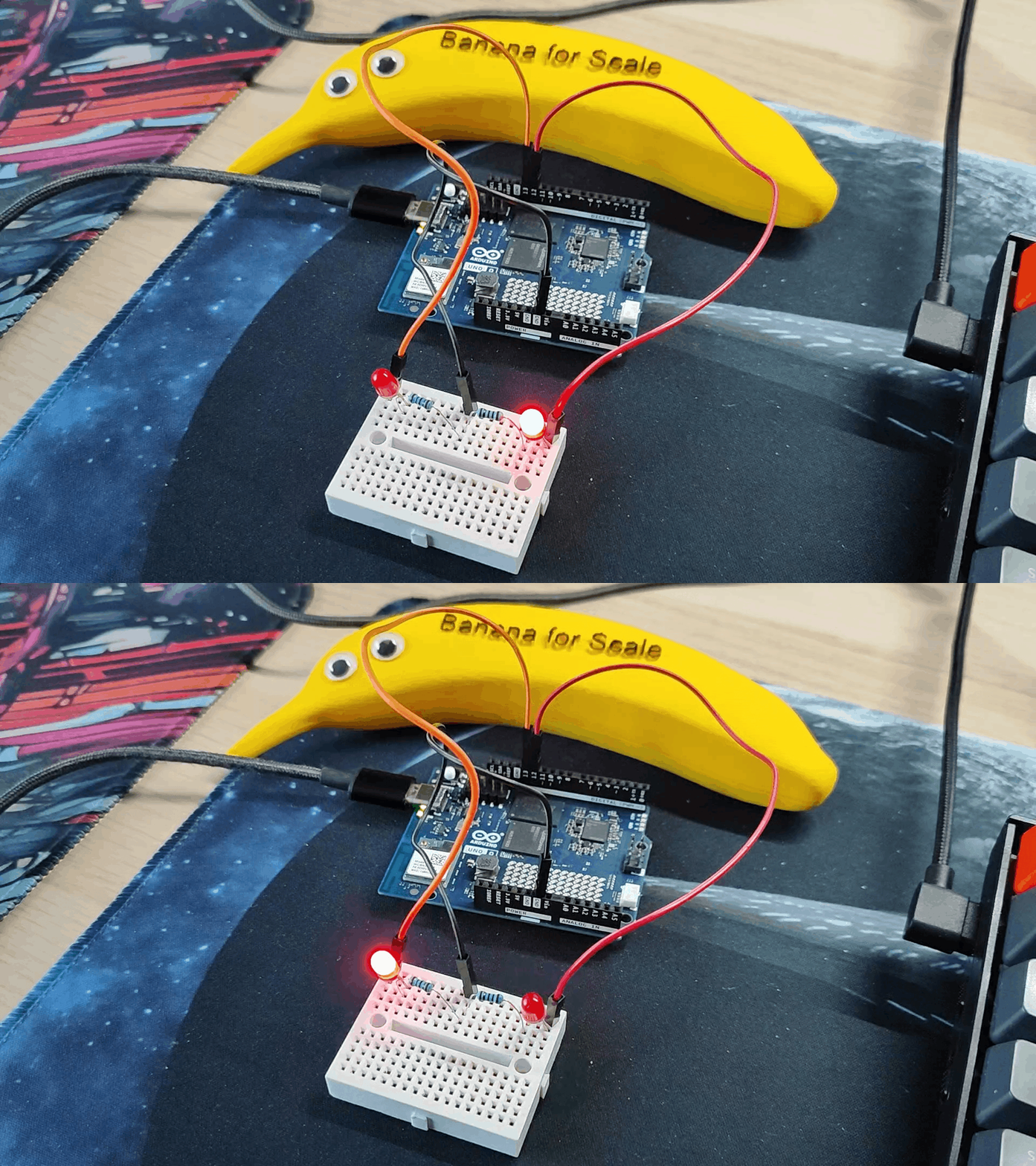
No matter how you choose to use the Arduino Uno Q, you’ll be using the new Arduino App Lab in some form. Initially, I used it directly on the board, connecting a screen, keyboard, mouse, etc., via a USB Type-C hub. It worked, and I was able to write a simple “LED Blink” script, but the experience was slow and left me wondering if something was happening as I waited for something to happen. As I’ve already said, the best way to use the Arduino Uno Q is via the Arduino App Lab on your more powerful PC.


The Arduino App Lab is slick and looks great. But I found myself struggling to understand the concepts and workflows necessary to build a project. I’m not (that much of) an idiot, and I can easily write and flash code to my other Arduinos and clones. But the extra steps for the Arduino Uno Q led me to really sit down and read the documentation. Luckily, Arduino has great documentation, but there were times when I was lost. For example, using the Serial.println() is not supported on the Arduino Uno Q, replaced with Monitor.println(), but I was unable to get this working despite following the instructions.

The Arduino App Lab also introduces “bricks,” packages of Python code that bring functionality via an easy-to-use workflow. Some bricks provide AI-relevant features, such as keyword spotting (used in the Hey Arduino! example), while others link to external APIs for weather and web-based user interfaces. Some bricks run as-is; others require a container to run; all are handled by the Arduino App Lab.
Adding a brick to your project is easy. Just click on Bricks, select what you need, and the brick is part of your project. Follow the API documentation to integrate it into your Python code, and you will soon have a keyword-powered LED, etc. I like this feature, largely because it makes using external resources a trivial process for newcomers.


View Original
View Original
The Arduino Uno Q workflow is really pushing for using the Qualcomm SoC and the STM32 via the RPC “bridge.” You can just write Arduino code directly in the Arduino App Lab, there is no real reason for using the bridge unless you want the power of the Dragonwing SoC. But by doing that, you are really wasting the potential that this board has. You could just use any Arduino or clone board and save yourself the extra spend.

If the Arduino App Lab isn’t for you, then the Arduino IDE 2.3.6 works with the STM32 side of the Arduino Uno Q. After updating and installing the board, I was able to flash the Blink sketch to the Arduino Uno Q. I also tried to upload the Adafruit NeoPixel strandtest sketch to the Arduino Uno Q, but it didn’t work. I checked the wiring, pins, and configuration, but nothing worked. I transferred the project to an Arduino Uno and flashed the sketch. It worked.
I dug a little deeper, and it seems that the STM32 is not supported by Adafruit’s NeoPixel library, so I had to search for something that was compatible. I couldn’t find anything compatible with the STM32 from the Arduino libraries, so I had to abandon that element of the test.
Overall, the Arduino App Lab is a great start, and as the Arduino Uno Q gains traction in the community, it will see more features and tweaks. The workflow takes a little getting used to, but it does simplify the link between the Python code and the Arduino code, which will help newcomers cut their teeth.
Testing the Included Examples
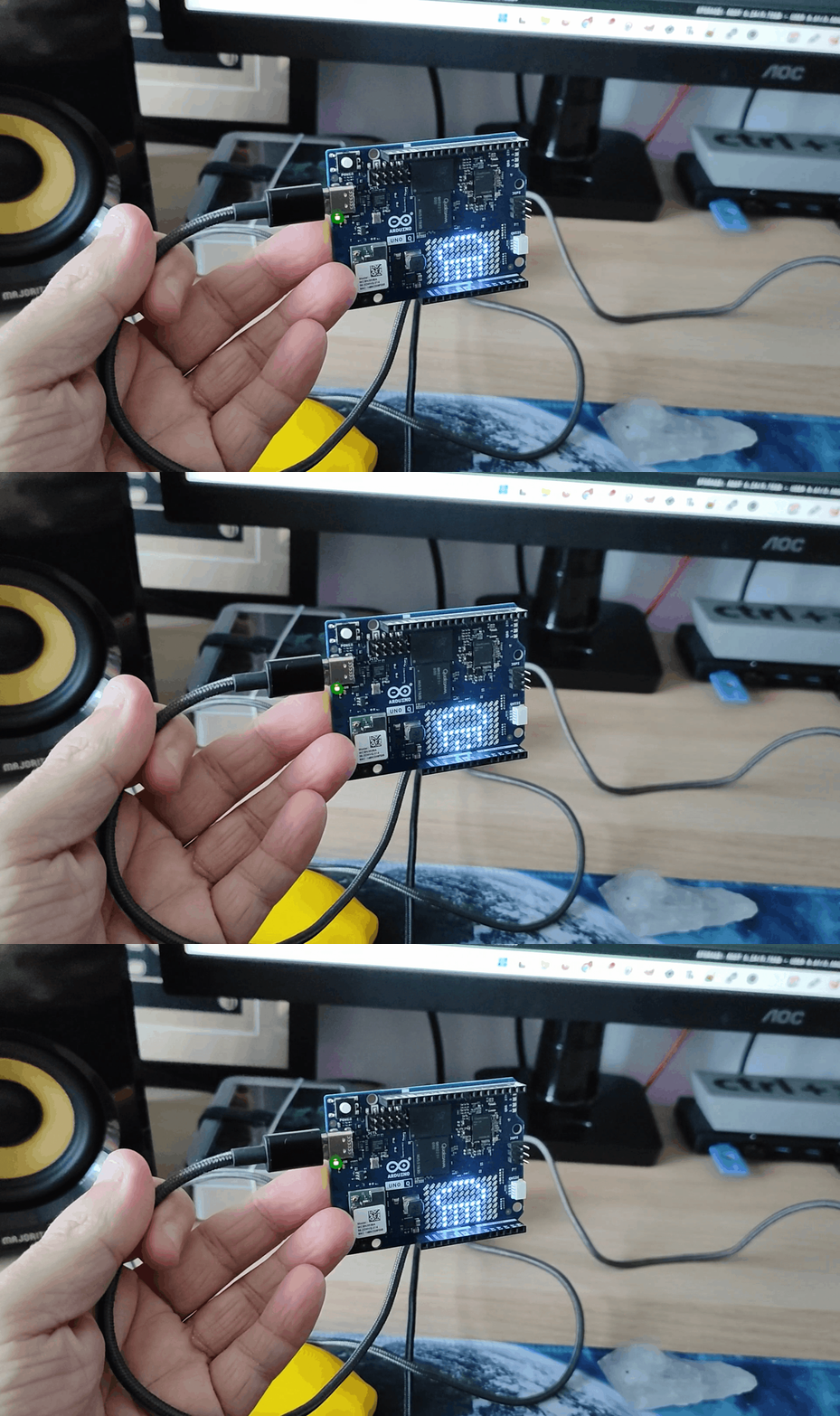
The Arduino Uno Q includes a set of examples covering a wide range of projects you can build with it. From the simple “blink an LED” to AI-based image identification, via web user interface-controlled LEDs and a voice-controlled LED matrix. Some of these projects rely on just the board, but those that use some form of AI often need extra components connected to the USB Type-C port. So you’ll need to dig out a compatible hub. This is where it gets messy, as we now have a hub, Arduino Uno Q, a microphone, and USB-C power to make a voice-controlled project.
I tested the “Hey Arduino” project and can confirm it worked, but it took ages to get the container running for the example. We’re talking 55 seconds from clicking Run to the project being available. Ok, a minute isn’t too long to wait, but if I were integrating this into a project, I would have to ensure that this and the time it takes the Arduino Uno Q to boot, 34.6 seconds, are both factored in.
The projects themselves are great; they illustrate how to use the Arduino Uno Q, and more importantly, they show how to create a project that uses both the Dragonwing and STM32 in one project.
Why is that important? The Arduino Uno Q is a hybrid device; it is neither a dedicated Linux SBC nor a microcontroller, it is both at the same time. This isn’t the first time that Arduino has created a hybrid board. The Galileo was a joint project with Intel, and it brought an Intel Quark X1000 CPU to a new form factor. It ran a Linux distribution based on Yocto and was compatible with Arduino shields. I’ll be honest, Galileo was an interesting idea, and back in the day, I reviewed a unit, but it was a very different beast from the typical Arduino with an Atmel chip.
There was also the Arduino Yún, a microcontroller-based board featuring the legendary ATmega32u4 and an Atheros AR9331 CPU that supported Linux. More recently, we have the Radxa X4, which features an Intel N100 CPU running any operating system you choose and a built-in Raspberry Pi RP2040, as seen in the Raspberry Pi Pico. Sure, for the Radxa X4, there wasn’t a bridge between the two, but there is a serial connection, and with just a few Python libraries, you could make your own bridge between the Intel and Arm CPUs.
AI Performance
The Dragonwing SoC at the heart of the Arduino Uno Q runs Linux, supports a Python bridge, and handles AI tasks. The thing is, due to the memory and processing restrictions, we can run an LLM, but it is tiny, and performance is slower than other SBCs.
To prove a point, I installed tinyllama:1.1b via ollama, and in a prompt, I asked it “What is an Arduino?” The answer was forthcoming, if a little slow. It took 28 seconds to start formulating an answer, and this led me to test how a series of Raspberry Pis would perform. The Raspberry Pi 500+, a keyboard version of the Raspberry Pi 5, started answering the question in 2 seconds! Even the older Raspberry Pi 4 managed 4 seconds. Sadly, the Raspberry Pi 3B+, a board with similar specifications to the Arduino Uno Q, didn’t have enough RAM to start the LLM.
Board |
Time to Compute Answer |
Arduino Uno Q |
28 Seconds |
Raspberry Pi 500+ |
2 Seconds |
Raspberry Pi 4 2GB |
4 Seconds |
Raspberry Pi 3B+ 1GB |
Not enough RAM |
If you’ve got an old Raspberry Pi 4 laying around, spend $10 on a Raspberry Pi Pico 2, and learn how to connect the two using your own serial bridge. You’ve just built your own Arduino Uno Q clone.
Who is the Arduino Uno Q for and what projects will they create?
Those already invested in the Arduino ecosystem will love the Arduino Uno Q, and I can see many AI / LLM-based projects being created with it. Robotics, sensor monitoring, smart homes, and more can be achieved with the Arduino Uno Q. Merging the AI-centric Qualcomm SoC with the STM32 for the GPIO is a smart move. The electronics for your project run on a real-time microcontroller, while the Arm CPU handles all of the AI, Linux, and Python aspects of the project.
Bottom Line
I love the Arduino. It is the board where I cut my teeth with electronics and microcontrollers. The Arduino Uno Q is an interesting board, but ultimately the spec is a little too old and reproducible with kit that many electronics enthusiasts will already have to hand.
That said, if you are a fan of the Arduino and its form factor, you will love the Arduino Uno Q and the ecosystem it brings. The hardware is good, and the Arduino App Lab is a great starting place to learn how to merge the two sides of the Arduino Uno Q into one project.
My worry with the Arduino Uno Q is that it becomes just like the Intel Edison, Galileo, and Arduino Yun. The Intel projects were born of collaboration, whereas the Arduino Uno Q is the result of Qualcomm’s purchase of Arduino. Could that give the Arduino Uno Q more support than previous attempts? Time and popularity will ultimately be the means by which this is measured.

Les Pounder is an associate editor at Tom's Hardware. He is a creative technologist and for seven years has created projects to educate and inspire minds both young and old. He has worked with the Raspberry Pi Foundation to write and deliver their teacher training program "Picademy".
-
Scott_Tx It's the worst of both worlds. Its slow as a PC and expensive for a micro controller.Reply -
bit_user Thanks for the review. It'll be interesting to see how things evolve, under Qualcomm's ownership. Maybe more products aimed directly at competing with Raspberry Pi?Reply
I was a little surprised at the low display output resolution. Even the first generation Pi (with as little as 256 MB of DRAM, IIRC) could do 1080p over HDMI. Any display output is still pretty impressive, for a microcontroller board. But, if you're going to do it, why not at least do 1080p? -
DJE666 You appear to have missed the recent integration of the Edge-Impulse AI development environment (also a Qualcomm company) with the Uno-Q. From AI inspiration to hardware deployment on the Uno-Q in under an hour.. This capability alone justifies the Uno-Q in my hardware tool-box..Reply