It doesn't matter if you're video conferencing with coworkers, chatting with family members, or live streaming to an audience of thousands — you want to look good! There are many things you can do to look better on camera, of course — but it starts with a good webcam.
We've tested dozens of webcams to determine the best webcam for every situation — whether you're trying to appear professional and put-together in front of colleagues while working from home, keep in touch with friends and family on the other side of the planet, or livestream content to millions of viewers.
The Quick List

Best Webcam for Most People
The Brio 500 is a 1080p/30fps webcam with a flexible, 90-degree field of view and impressive auto-white balance and auto-exposure right out of the box. It performs well in a variety of lighting conditions and is a great choice for chatting with family, friends, and coworkers.

Best Webcam for Content Creators
The Link is a 4K/30fps webcam that comes on its own AI-powered 3-axis gimbal. It's definitely overkill for most users, but it's got the best auto-exposure and color reproduction we've seen on a webcam.

Best Budget Webcam
The Facecam Neo is a 1080p/60fps webcam with a 1/2.9" CMOS sensor, an autofocus lens, and a physical privacy shutter. It won't blow you away with its image quality, but it's a solid option for just $60.

Best 4K Webcam
The Facecam Pro is a 4K/60fps webcam — that's right, 60fps — with a 90-degree field of view and an excellent autofocus lens. It comes with some pretty robust software and is a good option for content creators who need those 60fps.

Best Image Quality
The Kiyo Pro Ultra is a 4K/30fps webcam with an extra-large sensor and a wide aperture with a shallow depth-of-field — meaning it will give your images that blurred background effect without software.

Best 2K Webcam
The WB5023 is a 2K(QHD)/30fps webcam, and it's a good choice if you're looking for higher res than 1080p, but you don't need 4K. For example, if you want to zoom and crop your feed without losing resolution.
Best Webcams 2025
Why you can trust Tom's Hardware Our expert reviewers spend hours testing and comparing products and services so you can choose the best for you. Find out more about how we test.
Best Webcam for Most People

The Logitech Brio 500 is the first new Logitech webcam for non-creators in over a decade, and while its 1080p/30fps resolution may sound underwhelming, its performance is not. Armed with a flexible 90-degree field of view and Logitech’s "RightLight 4" image adjustment technology, the Brio 500 produces an impressive, exposure-balanced image right out of the box and is a great choice for most people.


We were especially impressed with the Brio 500’s auto-white balance, which is something almost all webcams struggle with: it wasn’t perfect, but it was almost as impressive as the auto-white balance seen on much pricier webcams, such as the Insta360 Link. Logitech’s "RightLight 4" technology, which is designed to compensate for less-than-ideal lighting situations, did an excellent job of producing flattering, evenly-lit images in both low and overexposed lighting.
The Logitech Brio 500 is a great example of how higher resolution doesn't automatically mean better picture quality — it may have the same surface-level specs as older Logitech webcams, such as the C920s and C930e, but it produces much better images. For the average person looking to upgrade their webcam from whatever’s built into their laptop’s bezel — or even from an older Logitech model — the Logitech Brio 500 offers the best out-of-the-box performance at a reasonable price ($130), with more modern software and a convenient USB-C connection.
Most web conferencing apps limit your streaming resolution to 1080p or 720p, but that doesn’t mean a webcam with a higher resolution is completely wasted. If you plan on zooming in to crop out your background, the 2K WB5023 Dell Pro Webcam is similarly priced to the Brio 500, offers impressive out-of-the-box performance, and outputs a 2K resolution, which will give you a touch more detail in closer shots.
Read: Logitech Brio 500 Review
Best Webcam for Content Creators

The Insta360 Link is an AI-powered 4K webcam perched on a 3-axis gimbal, packed with a variety of capture modes and features that will appeal to content creators such as AI movement tracking, and offers incredibly impressive color reproduction and auto-exposure. This doesn’t come cheap — the Link is one of the pricier webcams on this list with a retail price of $300 — but it's inline with other 4K options.


The Link offers unparalleled image quality, thanks to its 1/2-inch sensor and 4K resolution. But — more importantly — the Link has some of the best auto-exposure, color reproduction, and auto-focus we’ve ever seen in a webcam. Most webcams have difficulty adjusting between different lighting scenarios (especially quickly), and while the Link isn’t perfect, it’s very good at adjusting on the fly. This, combined with the webcam’s 3-axis gimbal and AI-powered movement tracking, makes the Link a very powerful contender for content creators who move a lot, or for professional or educational presentations.
The Link is a very impressive webcam — maybe a little too impressive. Realistically, the Link is probably overkill for all but a very small user demographic. 4K resolution isn’t even possible in most web conferencing apps, and capture modes such as “portrait mode,” “top-down mode,” and “desktop mode” are fun to play with but aren’t terribly beneficial unless you already know how you’re going to use them. Remember, this is still a webcam — it needs to be connected to a computer to work, so it's not as versatile as a standalone action cam, like a GoPro.
Read: Insta360 Link Review
Best Budget Webcam

You don't need a crazy 4K webcam if all you're doing is chatting with friends, family, and even coworkers — as I've mentioned throughout this piece, most video conferencing software limits you to 1080p resolution (or lower), anyway. Elgato's Neo line is designed to be simple, easy to use, and budget-friendly — and the Elgato Facecam Neo is exactly that. The Facecam Neo records video at 1080p / 60fps and has a 1/2.9" CMOS sensor, an autofocus lens, and a physical privacy shelter. It features a non-detachable USB-C cable, a detachable monitor stand, and it works with PCs, MacBooks, and iPads.
The Facecam Neo is a pretty standard-looking webcam, with a lightweight white plastic chassis that measures 3.5 inches (88mm) wide by 1.6 inches (40mm) tall and is 1.3 inches (32mm) deep. The front features a black circle around the lens, as well as a white indicator LED so you know when the webcam is streaming. It also has a physical privacy shutter, which slides over the lens via a small slider on top of the webcam. On the bottom of the webcam there's a standard tripod mounting point, which you can attach to the included clamp-style monitor stand or any other webcam stand/tripod. A 4.5-foot braided USB-C cable is permanently attached to the back.


The Facecam Neo is designed to be plug-n-play — like all of Elgato's Neo line. It does a decent job as a plug-n-play device: the default settings performed pretty well in our fully-lit lighting scenario, with nice color balancing and crisp details, though it did struggle slightly with light levels (as many webcams do). It performed impressively well in our low-light scenario — while the image was grainy, the light and color balance was better than what I've seen from many pricier, fancier webcams. Finally, the Facecam Neo struggled a bit with our overexposed lighting scenario, which is the hardest scenario for most webcams. The webcam does have HDR, though you'll have to turn it on in Elgato's Camera Hub software (so it's not really plug-n-play anymore), which helps it balance light a little better. I'm a big fan of Camera Hub, though, so I recommend downloading it regardless — it also lets you tweak the webcam's color and lighting settings, turn on digital zoom, and crop the image (always handy — most of us don't have picture-perfect webcam backgrounds set up and ready to go).
When the Facecam Neo first came out, it was priced at $99.99 — and I probably wouldn't recommend it at that price. But it's since undergone a permanent price reduction, down to $59.99, and that makes it a great buy. It's not a very fancy webcam — it doesn't even have a built-in microphone (not that you should ever be using the built-in mic on any webcam) — but it does what you need it to do, and it'll even work on your iPad.
Read: Elgato Facecam Neo Review
Best 4K Webcam

Like most (all) ultra-high-res 4K webcams, the Elgato Facecam Pro isn’t for everyone — remember, web conferencing apps such as Zoom, Microsoft Teams, and Google Meet, limit your outgoing stream to 720p or 1080p at most. The Facecam Pro is not only capable of producing a high-res 4K image, it’s able to output a 4K stream at 60fps. For context, other 4K webcams max out at 4K/30fps; the Facecam Pro is the first and only webcam capable of 4K/60fps streaming.
The Facecam Pro’s design isn’t particularly impressive — it’s bulky, boxy, and large — but the webcam is relatively lightweight and easy to maneuver, whether you place it on the included monitor mount or attach it to a tripod. It does lack a physical privacy cover, which seems like a pretty big oversight given how incredibly detailed and high-def the webcam’s picture is (plus, the standard Elgato Facecam came with a privacy cover).


It has a 90-degree field of view, an autofocus lens, and it comes bundled with Elgato’s Camera Hub software — which offers a surprisingly detailed amount of control over exposure, white balance, and framing. The Facecam Pro retails for $299 and is a good option for professional streamers and content creators who need 4K/60fps video and who are already part of Elgato’s streaming ecosystem. But if you don't need 60fps, the Facecam Pro isn't necessarily our top 4K webcam pick.
Read: Elgato Facecam Pro Review
Best Image Quality
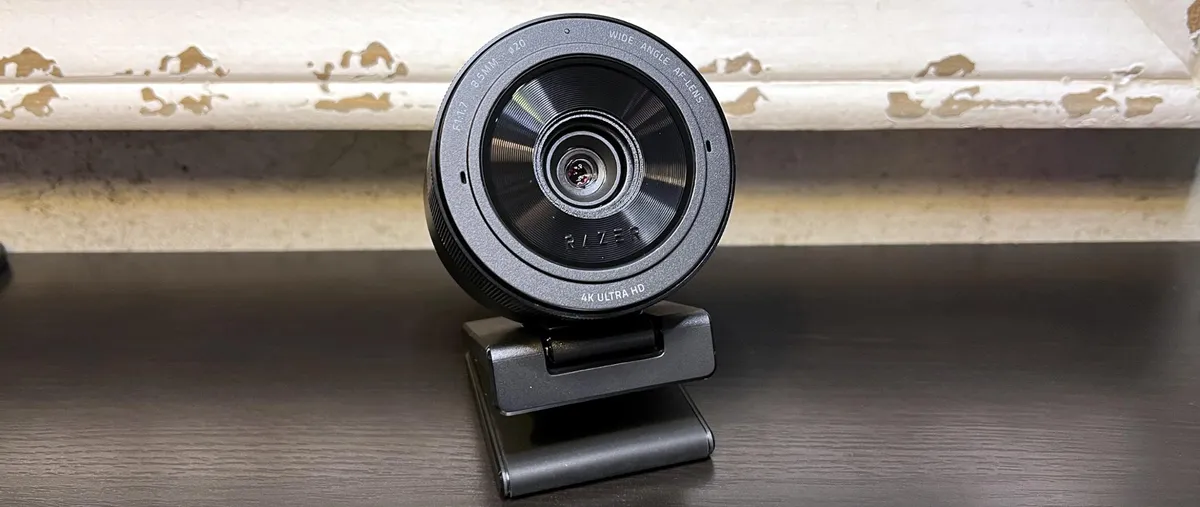
Razer’s first 4K webcam, the Kiyo Pro Ultra, has the largest sensor ever put in a webcam — a 1/1.2-inch Sony Starvis 2, with a wide f1.7 aperture — as well as 4x digital zoom, an adjustable field of view (72 - 82 degrees), and a nicely-integrated physical privacy shutter. It’s a large but relatively lightweight webcam, and it has the same detached-DSLR lens aesthetic as its predecessors.
This is one of the best webcams we’ve tested when it comes to image quality — it has excellent auto-exposure and color balancing and a shallow depth of field that gives you a nice blurred-background effect without using software. Its impressive image quality was most apparent in our well-lit test setting, but it also did pretty well in our low-light and overexposed scenarios (once we tweaked some settings). The crispness and clarity of the picture is shockingly good, even compared to other 4K webcams — and while the average person probably doesn’t need (and can’t even use) such ultra-HD streaming, this does mean a better picture for lower-resolution streams, especially if you’re zooming and cropping.


The Kiyo Pro Ultra works with Razer’s Synapse 3, which offers pretty detailed control over the webcam with manual adjustments for focus, exposure, and color balance, as well as photo and video resolution settings and processing effects. Unfortunately, to adjust any of the Kiyo Pro Ultra’s settings in Synapse 3, you must have the in-app preview turned on, and Windows only allows you to use the webcam with one app at a time — so if you’re trying to set up an image in a program other than Synapse 3 (and you probably are), this quickly becomes a very frustrating process.
While this may not be too much of a problem for the casual user, professional streamers and content creators who are looking for precise control over their streaming output will probably be better off with the Insta360 Link or the Elgato Facecam Pro — both similarly-priced 4K webcams with very usable software.
Read: Razer Kiyo Pro Ultra Review
Best 2K Webcam

If you’re not quite ready to spring for a 4K webcam — and, let’s face it, you probably don’t need one — a 2K webcam like the Dell Pro Webcam (WB5023) is a nice compromise. This 2K QHD webcam records video at 1440p/30fps (1080p/60fps) and has a 78-degree field of view as well as HDR, 4x digital zoom, a built-in mic, and AI auto-framing.
The Dell Pro Webcam looks similar to its pricier sibling (but... cheaper). It has a plastic chassis, a magnetic lens cap, a non-detachable USB-A cable, and a built-in monitor clamp — it’s definitely less “premium” than the Dell Ultrasharp, but it’s well built and still looks relatively sleek sitting on top of your monitor.


The Dell Pro Webcam is a good plug-and-play webcam — it performed well in all of our lighting scenarios right out of the box. It was especially impressive in our low-light test scenario, as it’s one of the only webcams we’ve reviewed that has managed to adequately light both the foreground and the background in a near-dark setting. It also features Digital Overlap HDR.
Most video conferencing apps cap streaming video quality at 1080p, so a 2K webcam might not seem any more usable than a 4K webcam in that regard. However, a higher resolution webcam can still make a difference if you plan on zooming in (perhaps to crop out your background), so it’s not just content creators who can benefit.
Read: Dell Pro Webcam (WB5023) Review
Specifications Comparison
| Row 0 - Cell 0 | Resolution | FOV | Focus |
Logitech Brio 500 | 1080p (30fps), 720p (60fps) | 90º, 78º, 65º | Autofocus |
Insta360 Link | 4K (30fps), 1080p (60fps), 720p (60fps) | 79.5º | Autofocus |
Elgato Facecam Neo | 1080p (60fps) | 77º | Autofocus |
Elgato Facecam Pro | 4K (60/30fps), 1080p (60/30fps), 720p (60/30fps) | 90º | Autofocus |
Razer Kiyo Pro Ultra | 4K (30fps), 1440p (30fps), 1080p (60/30/24fps), 720p (60/30fps) | 82º - 72º | Autofocus |
Dell Pro Webcam (WB5023) | 1440p (30fps), 1080p (60/30fps) | 78º | Autofocus |
Other Webcams We Tested

Elgato Facecam MK.2
The Facecam MK.2 is a nice upgrade to the original Facecam, but it's just... not that different. It's got the same basic specs as its predecessor — 1080p/60fps video, a f/2.4 aperture fixed-focus lens, and an 82-degree field of view.
It adds onboard storage, HDR, and 4x digital zoom, and has been redesigned with a built-in privacy shutter and a lower-profile chassis. It's also cheaper at $150 (the original Facecam debuted at $200).
Performance-wise, it displays good auto-exposure and white balancing in well-lit and low-light scenarios, but the HDR was underwhelming. It's a good webcam, but the Logitech Brio 500 has better out-of-the-box image quality, a better built-in shutter design, and is cheaper.

Read: Logitech MX Brio Review
Logitech MX Brio
The MX Brio is Logitech's update to the Brio 4K — the first 4K webcam... ever. The MX Brio sports the same resolution (4K/30fps, 1080p/60fps) as its predecessor but has an upgraded sensor and improved software for an image that's twice as detailed as the Brio 4K. It's also got a nice new look — a sleek aluminum chassis with a convenient integrated privacy shutter.
The MX Brio produces balanced, evenly-lit images that work especially well in a professional setting, and this webcam is aimed at business users (rather than gamers/streamers/creators). It's not quite as dramatic or as detailed as the creator-focused 4K webcams we've tested (but it's also cheaper, at $200).
It's certainly a solid option for someone who's mostly chatting with coworkers or clients, but those users generally don't need 4K resolution. The MX Brio is certified for popular video conferencing apps Microsoft Teams, Google Meet, and Zoom — none of which even support 4K webcam video. (Also, it doesn't support Windows Hello — though its predecessor did.) We're just not sure who this webcam is for.

Read: Razer Kiyo Pro Review
Razer Kiyo Pro
The Razer Kiyo Pro is a good 1080p/60fps option for those who don't need (or want) the 4K resolution of the Kiyo Pro Ultra. It drops the built-in ring light we saw in its predecessor (the Razer Kiyo), and has a design that looks a lot like its 4K successor (the Kiyo Pro Ultra), minus the convenient built-in privacy shutter (it does come with a lens cover, though).
The Kiyo Pro features a large, impressive light sensor that boosts the image in low-light conditions, as well as HDR, an adjustable field of view (80/90/103-degrees), and records uncompressed 1080p/60fps video.
How We Test Webcams
We test each of our webcams by inspecting its specs, design, and build quality, as well as how easily its lens can be covered for privacy. We also test the stability and flexibility of any built-in or included monitor stands, and check each camera for third-party mounting options.
We then shoot test photos in three lighting conditions: (1) well-lit, with bright lighting both in front of and behind the subject; (2) backlit/overexposed, with bright light behind the subject and one 27-inch monitor in front of the subject; and (3) low-light, with no lighting aside from one 27-inch monitor in front of the subject, displaying the standard Google home page. Our home office lighting is completely controlled.
Our first round of shooting uses the camera's default, out-of-the-box settings. We then manually adjust the camera's settings using the camera's companion software, if applicable. If the camera doesn't come with software, we use a third-party application (YouCam 9) to adjust its settings. We adjust the settings so that the camera looks best in each of our lighting conditions and then take another round of photos. If there are any special settings, such as HDR or low-light boost, we also take photos with those turned on and off in each setting.
While we do test the photo capabilities of any included software, we take all of our final photos using the Windows Camera app for consistency.
Quick Shopping Tips
Here are a few details to consider while you're shopping for the perfect webcam.
- Resolution: It's easy to be wooed by that 4K label, but make sure you actually want — and can use — an ultra high-res webcam. Common web conferencing apps such as Zoom, Google Meet, and Microsoft Teams limit your outgoing video stream to 720p or 1080p, so it's unlikely your coworkers will benefit from that extra quality unless you plan on zooming (higher-res webcams will offer more detail in zoomed-in shots).
- Field of View (FOV): Webcams with wider FOVs show more of the room. This is good if there will be multiple people in the shot, or if you're planning on presenting using a visual aid such as a white board. It's not so good, however, if you have a thrown-together work-from-home setup and you don't want viewers to see the mess around you.
- Autofocus, auto white balance, and low-light correction: Most webcams look pretty good with a professional lighting setup, a thoughtfully-framed and curated set, and some manual software fine-tuning. But if you don't have the space, equipment, time, or patience to perfect your picture, look for a webcam that works well out of the box. We test webcams using both default and manually-configured settings, in a number of ideal and less-than-ideal lighting scenarios.
- Privacy cover: Privacy is a real concern — and not just from malicious hackers or spying governments. Internet security is important, but here's a more likely situation: you, accidentally turning your webcam on (or leaving it on) without realizing it. Yeah — something as simple as a physical privacy cover can save you from potential embarrassment, and all webcams need one.
Finding Discounts on the Best Webcams
Whether you're shopping for one of the best webcams or one that didn't quite make our list, you may find savings by checking out the latest Logitech promo codes, Newegg promo codes, Amazon promo codes, Razer promo codes or Micro Center coupons.
MORE: Best Gaming Headsets
MORE: Best Gaming Microphones
MORE: Best Gaming Monitors